Set up the Slack MCP server
Slack publishes an official MCP server at mcp.slack.com that lets AI agents search messages and files, read channels and threads, send messages, react to messages, search and manage canvases, and look up users and emoji. This guide covers creating a Slack app, configuring OAuth, and connecting it to MintMCP as a remote MCP.
Prerequisites
- A MintMCP admin account
- A Slack workspace where you can install apps
- A Slack app that is Marketplace-published or installed as an internal app — unlisted apps cannot use Slack's MCP server. See Create a Slack app below.
Create a Slack app
The fastest way to create the app is a one-click link that pre-loads the full configuration — app name, OAuth scopes, redirect URL, bot user, and the Slack MCP server toggle. If you'd rather reuse an existing Slack app, skip to Configure an existing app.
-
Click the button below. Slack opens the create-app screen with the manifest configuration already loaded.
Create the MintMCP Slack app -
Pick the workspace where you want to install the app.
-
Review the summary — name, scopes, and redirect URL — then click Create.
The app is created with the Slack MCP server already enabled, so you can continue to Copy the client ID and secret.
Tool capabilities reference
Slack determines available tools from the scopes the user grants on install, so trim or expand here based on what your org needs. The one-click manifest pre-loads everything in the table except channel creation, which is opt-in.
| Capability | Scopes | In one-click install |
|---|---|---|
| Search messages | search:read.public, search:read.private, search:read.mpim, search:read.im | Yes |
| Search files | search:read.files | Yes |
| Search users | search:read.users | Yes |
| Send messages | chat:write (user + bot) | Yes |
| Read channels and threads | channels:history, groups:history, mpim:history, im:history (user + bot) | Yes |
| Create and update canvases | canvases:read, canvases:write | Yes |
| React to messages | reactions:write, reactions:read | Yes |
| Search emoji | emoji:read | Yes |
| Read user profiles | users:read, users:read.email | Yes |
| Assistant context | assistant:write (bot) | Yes |
| List channels | channels:read (bot) | Yes |
| Create channels and group DMs — handle with care | channels:manage, groups:write (bot) | No — add manually if needed |
Scopes don't grant access on their own — what each user can actually do is still bounded by Slack workspace permissions.
The Create channels and group DMs row lets agents create new channels and group DMs in the workspace, which is a high-blast-radius capability. Add it only when the org explicitly wants that, and consider marking it bot_optional (see Review or customize scopes) so users grant it per install rather than at create-time.
Review or customize scopes
To change which scopes the app exposes, open OAuth & Permissions in your new app's sidebar, then add or remove scopes under Bot Token Scopes and User Token Scopes: use the trash icon to remove a scope, or Add an OAuth Scope to add one.
Slack also supports optional scopes via the bot_optional and user_optional manifest fields (changelog). Marking a scope optional lets each user decide whether to grant it on install instead of blocking the install entirely — useful for write-capable scopes like chat:write, canvases:write, reactions:write, or the channel-creation scopes above.
Configure an existing app
If you're reusing an existing Slack app instead of creating one from the manifest, add the redirect URI, the required OAuth scopes, and enable MCP manually:
-
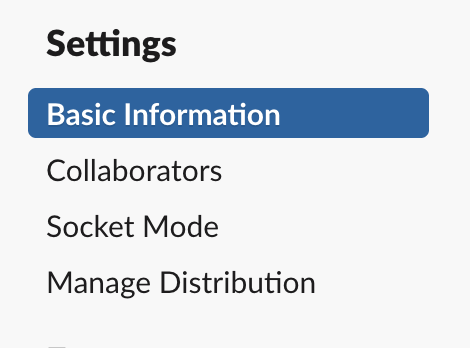
Confirm the app is Marketplace-published or installed as an internal app — unlisted apps can't use Slack's MCP server. Check this under Settings > Manage Distribution: if you've never activated public distribution, the app is internal and qualifies. If you have activated it, the app must be listed in the Slack Marketplace — otherwise it counts as unlisted and MCP installs are rejected.
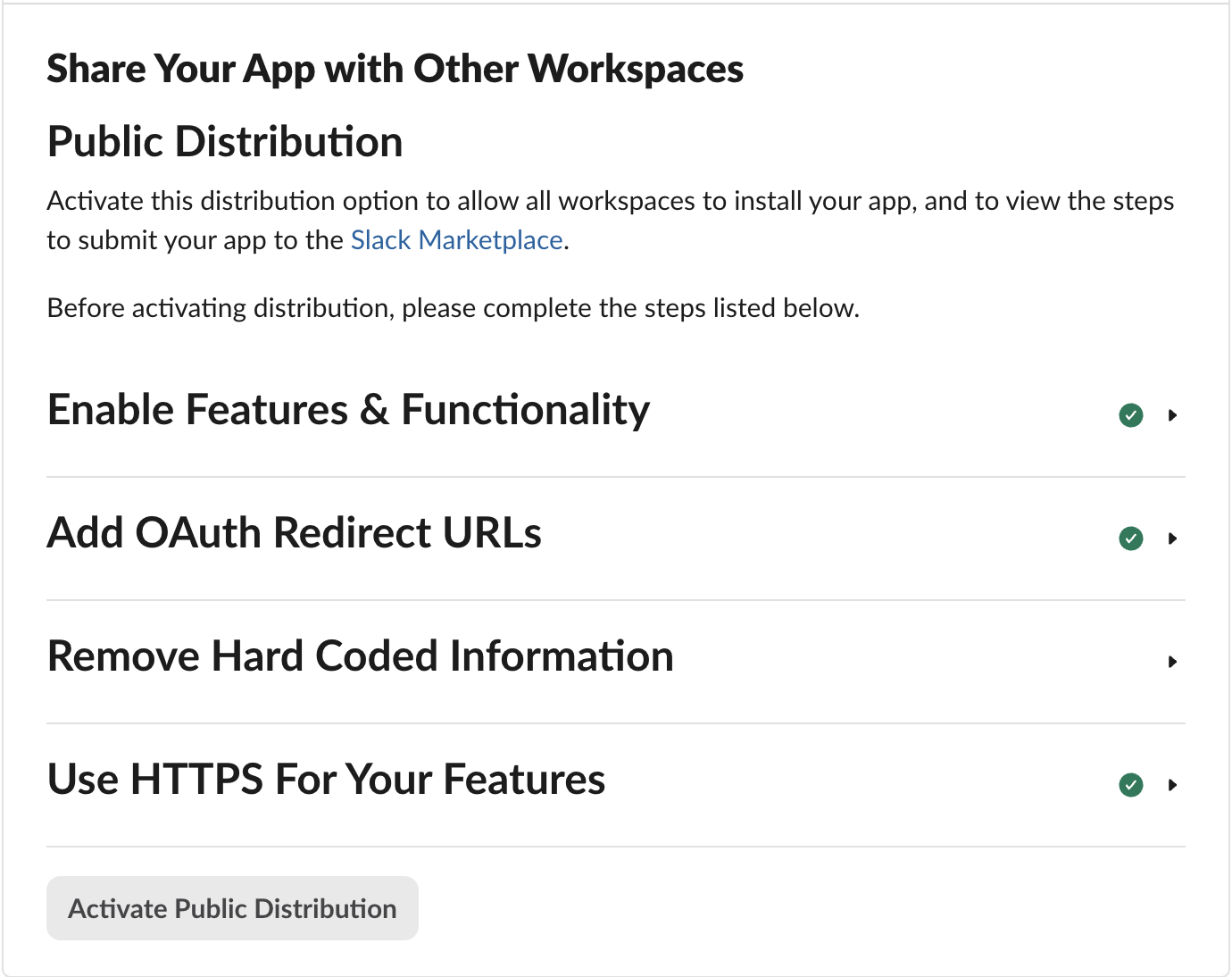
-
Go to OAuth & Permissions in the sidebar.
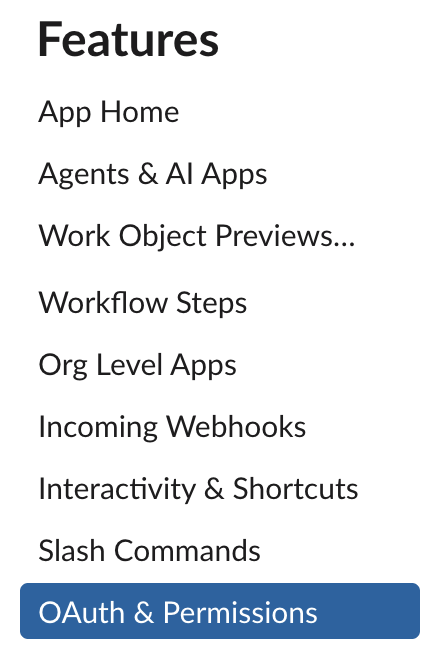
-
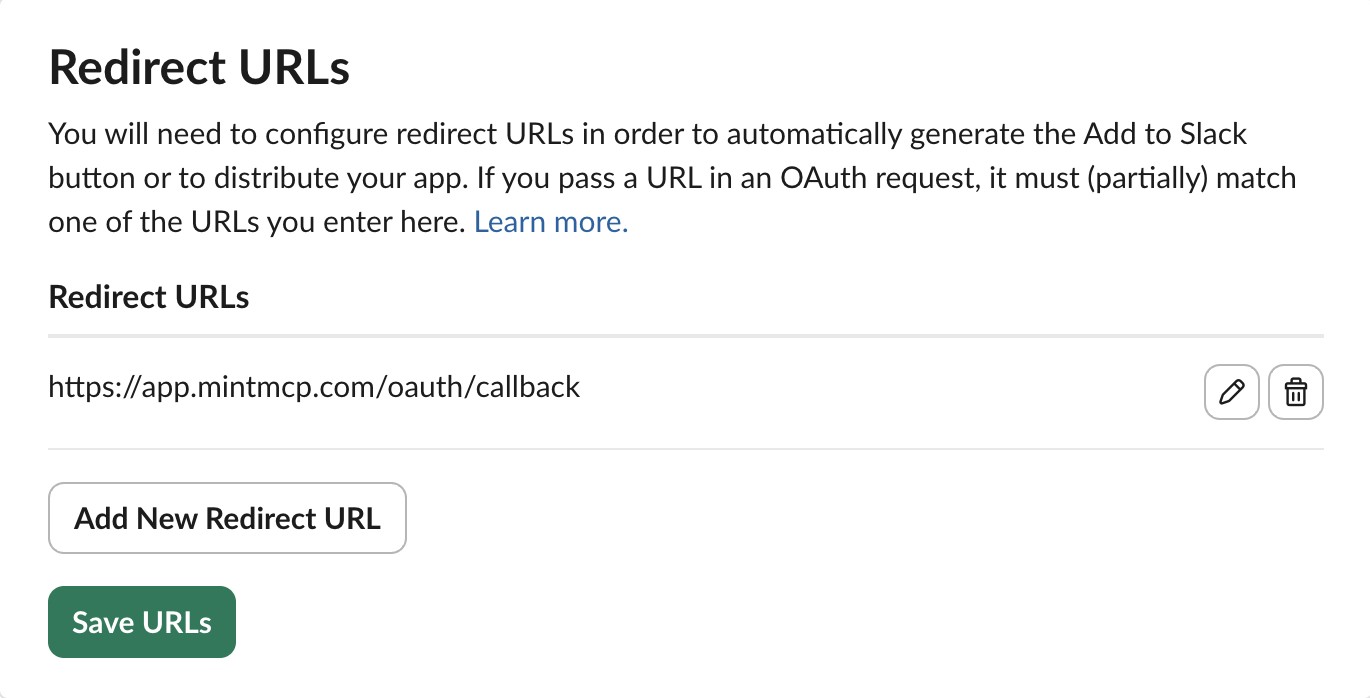
Under Redirect URLs, add the callback for your MintMCP region and click Save URLs:
MintMCP region Redirect URL US ( app.mintmcp.com)https://app.mintmcp.com/oauth/callbackEU ( eu.mintmcp.com)https://eu.mintmcp.com/oauth/callbackThe install panel in MintMCP shows the callback for your organization.
-
Scrolling down on this same menu, under User Token Scopes, add the scopes your team needs from the table above. At minimum, you'll likely want the search and channel history scopes.
-
Under Bot Token Scopes, add
assistant:write,channels:read,channels:history,groups:history,im:history,mpim:history, andchat:write. -
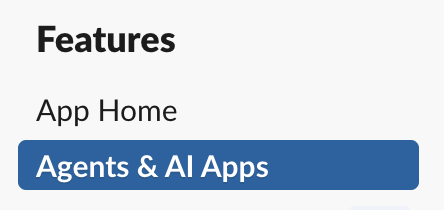
In the left menu, go to Features > Agents & AI Apps, then turn on Model Context Protocol.

Copy the client ID and secret
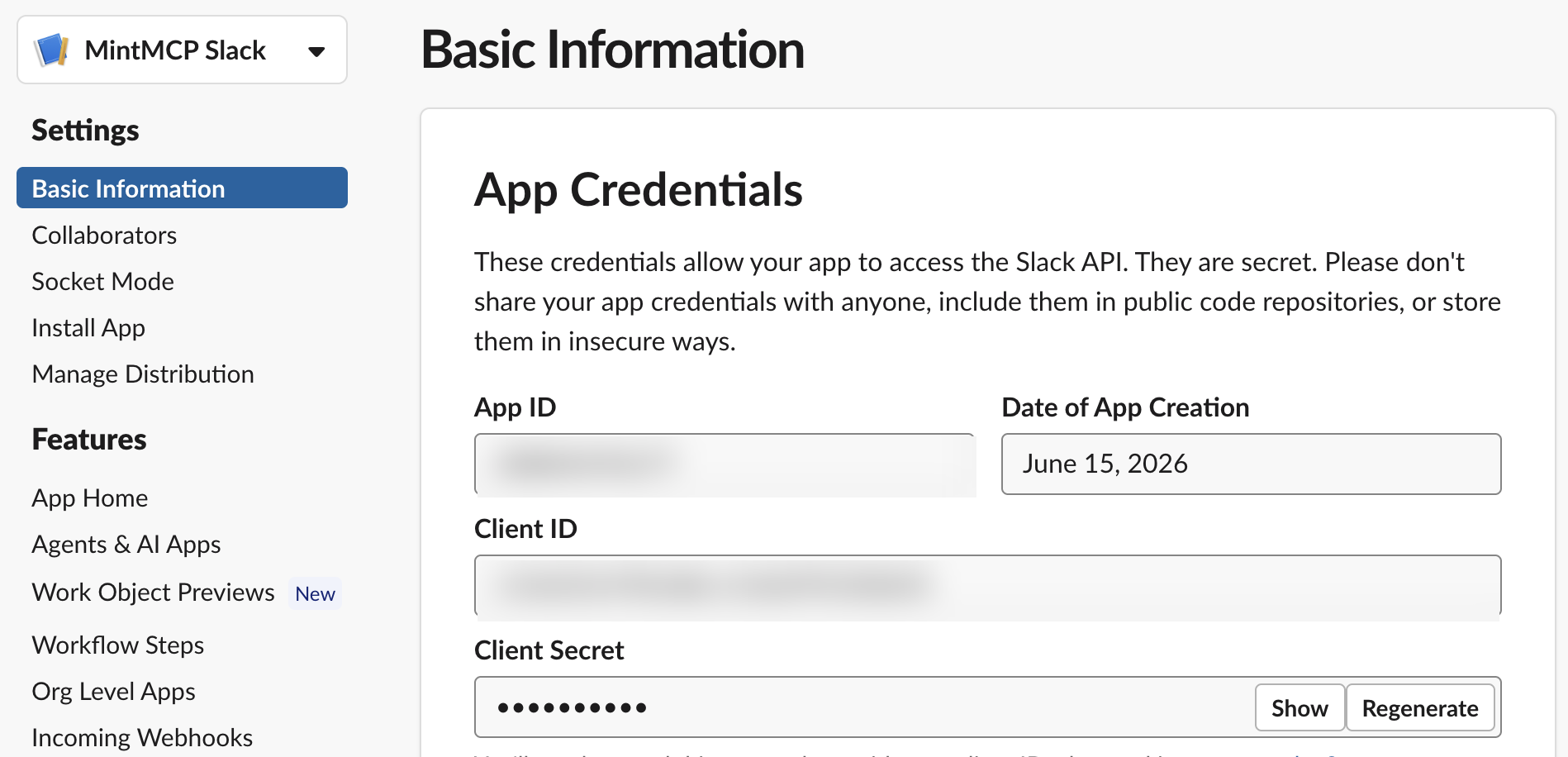
- Go to Settings > Basic Information in the sidebar.
- Under App Credentials, copy the Client ID and Client Secret. You'll need both in the next step.
Add Slack to MintMCP
- In MintMCP, go to MCP store > Manage store.
- Find the Slack MCP server and click to configure it.
- Open OAuth Client Advanced Settings and paste the Client ID and Client Secret from your Slack app.
- Save the configuration.
Security considerations
- Slack's MCP server uses confidential OAuth with your app's
client_idandclient_secret— keep the secret out of version control. - Each user authenticates individually, so tool calls are tied to their Slack identity and permissions.
chat:write,canvases:write,reactions:write, and the channel-creation scopes are write-capable. Use optional scopes to let users grant or decline them per install rather than baking them into every install.- Be careful when connecting Slack's MCP server alongside other MCP servers, since different servers have different security characteristics. Review Slack's MCP security guidance for details.
Troubleshooting
- OAuth callback fails with
redirect_uri_mismatch— confirm the Slack app's redirect URLs include the callback for your region (https://app.mintmcp.com/oauth/callbackorhttps://eu.mintmcp.com/oauth/callback) under OAuth & Permissions → Redirect URLs. - MCP toggle not enabled — open Features → Agents & AI Apps in the app sidebar and turn on Model Context Protocol. The one-click manifest sets this automatically; existing-app installs must enable it manually.
- App-type rejection on install — Slack rejects unlisted apps for MCP. Submit the app to the Slack Marketplace or install it as an internal app for your workspace.
- Tools missing after install — the installing user declined one or more scopes, or the scopes were never added to the app. Reinstall (reconsidering any optional scopes) or add the missing scopes under OAuth & Permissions.
Next steps
- Tool customization — Control which Slack tools are exposed to users
- MCP gateway administration — Manage access and permissions