Administration
This guide covers creating, configuring, and managing MCP servers in your organization's MCP gateway.
MCP gateway overview
The MCP gateway section in MintMCP has three pages:
| Page | Purpose |
|---|---|
| Dashboard | Analytics showing tool usage across your organization |
| MCP store | Where users browse and install approved MCP servers |
| View as user | Preview what members see in the MCP store |
To manage MCP servers, navigate to MCP store and you'll see your organization's registry with admin controls.
Adding MCP servers
Click + Add an MCP to your registry to see five options:
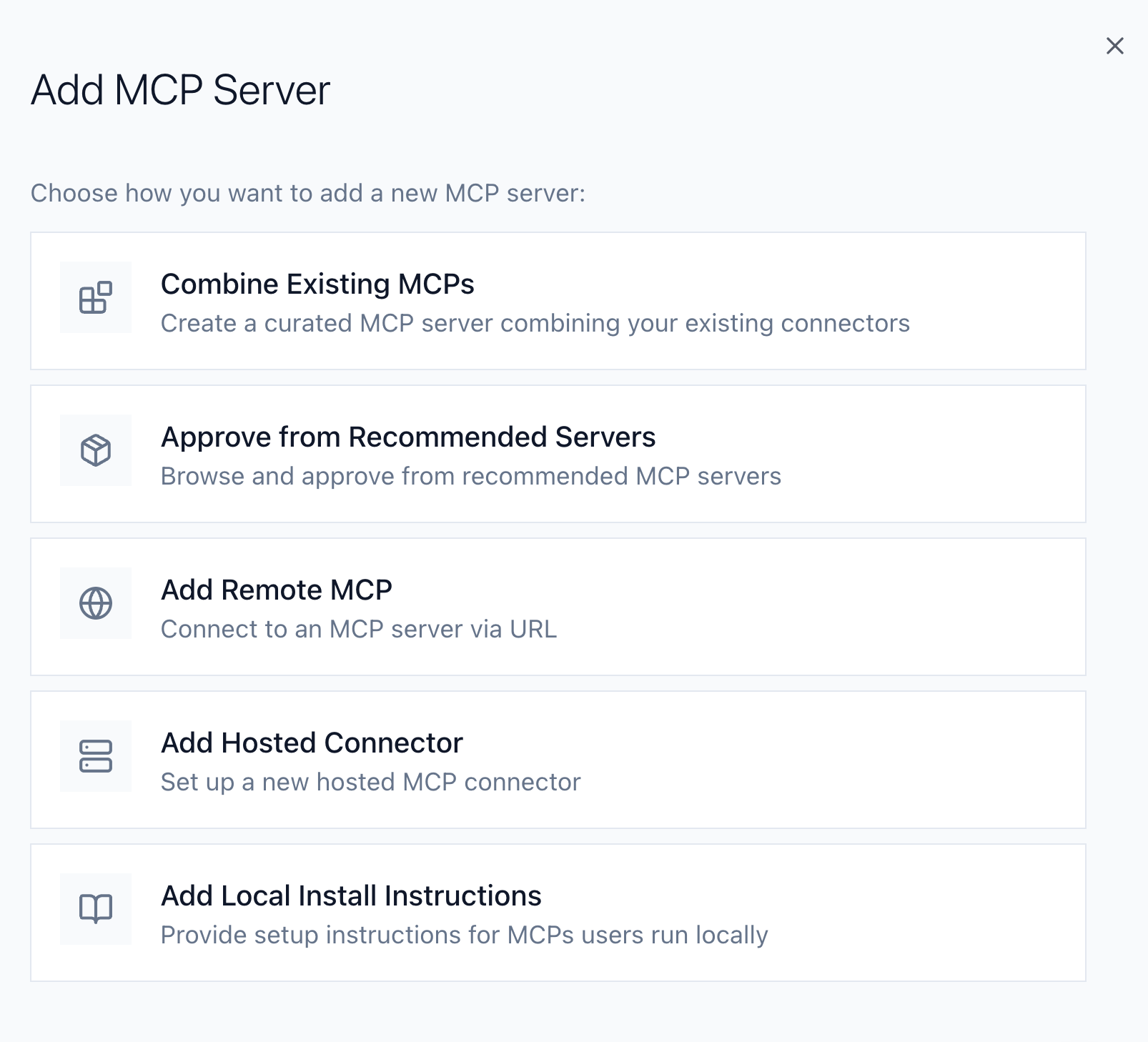
| Option | Description | Guide |
|---|---|---|
| Browse pre-vetted servers | Browse and approve pre-vetted servers from MintMCP's catalog | — |
| Connect to an MCP by URL | Connect to external MCP servers (vendor-hosted or internal) | Add a remote MCP |
| Host an open source or custom MCP | Run open-source MCP servers in MintMCP's managed infrastructure | Add a hosted connector |
| Create a role-based MCP bundle | Bundle multiple connectors into one endpoint for role-specific tool sets | — |
| Add local installation instruction | Provide setup instructions for locally-run MCP servers | — |
Configuring an MCP server
Click any MCP server in your registry to open its configuration. The detail page has four tabs:
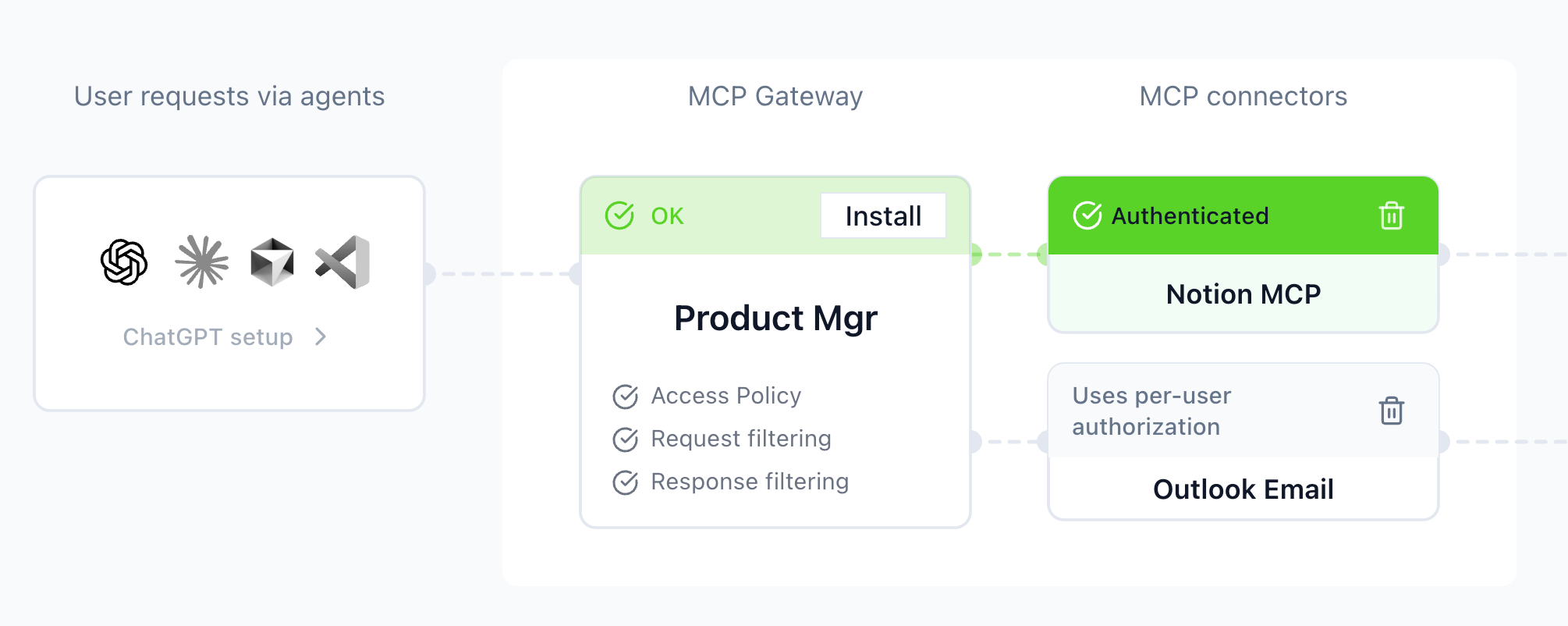
Visualization
Shows the architecture of your MCP server:
- How user requests flow through the MCP gateway
- Which connectors are included
- Authentication status for each connector
Tool customization
Configure which tools are exposed and how they behave:
- Update policy: Control whether new tools are enabled automatically or require approval
- Tool name limits: See tools exceeding client character limits
- Per-connector controls: Enable or disable entire connectors or individual tools
See Tool customization for detailed guidance.
Access policy
Choose who can call and edit this MCP server. The tab shows the server's access grants directly, so you edit them in place:
- Entire Organization: A toggle that grants everyone in the organization access. Turn it off so only the people and groups listed below can use the server.
- Grant list: A table of users and directory groups, each with an access level. Can Use means they can connect to and call the server; Can Edit includes Can Use and adds the ability to edit all of its settings. When nothing is listed, the table shows No grants.
- Add people or groups: Opens a dialog where you pick the access to grant, then search for users and groups. Directory groups are listed above users so they stay visible even in organizations with thousands of members.
- Bulk actions: Select rows with the checkboxes to Set to Can Use, Set to Can Edit, or Revoke several grants at once.
Changes save immediately. Changing grants requires the "Share MCPs" permission, and you can't edit or revoke your own Can Edit grant, so you can't lock yourself out.
ChatGPT setup
Instructions for connecting this MCP server to ChatGPT Custom GPTs:
- API key method: Simple setup for personal use
- OAuth method: Proper user attribution when sharing the Custom GPT
Security and governance
Every MCP server inherits MintMCP's security controls:
Observability and audit: All traffic flows through MintMCP, so:
- Requests and responses appear in the activity dashboard
- Security teams can trace usage back to individual members
- Connector health states signal authentication failures or outages
Access control: Happens at the MCP server layer:
- Administrators decide which connectors to include
- They assign access policies to control who can connect
- They curate available tools via Tool customization
Managing your registry
The MCP store page
The MCP store page shows all MCP servers in your registry with three tabs:
| Tab | Contents |
|---|---|
| [Org name]'s registry | MCP servers you've created or approved |
| Recommended servers | Browse and approve from MintMCP's catalog |
| Hosted connectors | MCP connectors hosted by MintMCP |
Deleting an MCP server
Open the MCP server's detail page, go to the settings tab (the gear icon), and click Delete Virtual MCP in the Danger zone section.
Next steps
- Core concepts: Understand how Virtual MCP servers work
- Tool customization: Learn to curate tools effectively
- User guide: Share with users who need to connect