Set up the Zoom MCP server
The MintMCP Zoom MCP server gives AI agents access to Zoom meetings, users, and cloud recordings — creating and managing meetings, listing participants, and retrieving recording data. This guide covers creating a Zoom OAuth app and connecting it to the MintMCP-hosted Zoom server.
Prerequisites
- A MintMCP admin account
- A Zoom account with admin access (to create and manage apps in the Zoom Marketplace)
Create a Zoom OAuth app
-
Go to marketplace.zoom.us.
-
Click Develop in the top navigation, then click Build App.
-
Select General app and click Create.
-
Enter a name for the app — for example, MintMCP.
-
Under OAuth Redirect URL, add the callback for your MintMCP region:
MintMCP region OAuth Redirect URL US ( app.mintmcp.com)https://app.mintmcp.com/oauth/callbackEU ( eu.mintmcp.com)https://eu.mintmcp.com/oauth/callbackThe install panel in MintMCP shows the callback for your organization.
-
Click Add to save the redirect URL.
-
Go to the Scopes section and add the required scopes:
Capability Scopes List and read meetings meeting:read:list_meetings,meeting:read:meetingList past meeting participants meeting:read:list_past_participantsRead cloud recordings cloud_recording:read:list_user_recordingsList recording files for a meeting cloud_recording:read:list_recording_filesVTT transcripts cloud_recording:read:content -
Click Save.
Copy the Client ID and Client Secret
- Go to App Credentials in the left sidebar.
- Copy the Client ID.
- Copy the Client Secret. You'll need both in the next step.
Set up Zoom in MintMCP
Contact MintMCP support to have the Zoom MCP server deployed to your account — MintMCP will install it as a Hosted Connector.
Once deployed, configure the OAuth credentials:
- In MintMCP, go to MCP store > Your registry.
- Click on the Zoom MCP server.
- Click Hosted Connector.
- Click Edit.
- Scroll down to Hosted OAuth config.
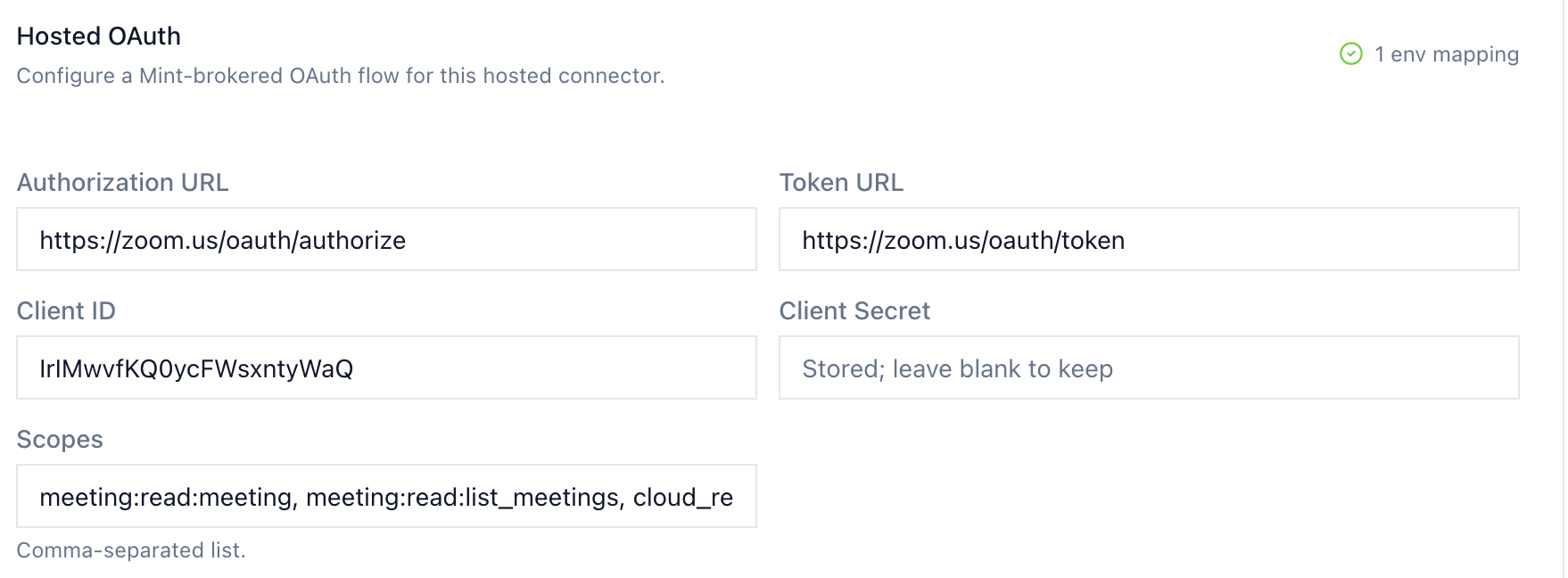
- Enter:
- Client ID: paste the Client ID from the previous step
- Client Secret: paste the Client Secret from the previous step
- Click Save.
Security considerations
- Each user authenticates individually through OAuth, so actions are attributed to their Zoom identity and limited by their existing Zoom permissions.
- Store the Client Secret securely — anyone with it can authenticate as your Zoom app.
- Limit the app's scopes to only what the Zoom MCP server needs. Unused scopes are unnecessary access.
Next steps
- Tool customization — Control which Zoom tools are exposed to users
- MCP gateway administration — Manage access and permissions