Deploy Agent Monitor with Kandji MDM
Push system-level hooks configuration so devices send AI coding agent activity to the Mintive dashboard (no plugin required).
Requirements
- No existing managed hooks file on devices (this will create it fresh).
Find your org key
Go to Agent Monitor setup. Your org key starts with llmorgkey_.
Kandji custom script
Prepare the script
Paste your org key from Agent Monitor setup — the script updates automatically so you can copy it ready to go.
EU-region organizations use https://eu.mintmcp.com/hooks/claudecode in place of https://app.mintmcp.com/hooks/claudecode, so update the hook URLs in the script to match. For Intune, Jamf, and Windows deployments, see Deploy Agent Monitor via MDM.
- Claude Code
- Cursor
#!/bin/bash
# Agent Monitor — Kandji custom script (Claude Code)
# Writes managed-settings.json with native HTTP hooks for Mintive. {#writes-managed-settingsjson-with-native-http-hooks-for-mintmcp}

set -euo pipefail

ORG_KEY="YOUR_ORG_KEY_HERE"

if [[ ! "$ORG_KEY" =~ ^llmorgkey_ ]]; then
echo "[AgentMonitor] ERROR: ORG_KEY not set. Edit the script and replace YOUR_ORG_KEY_HERE with your Mintive org key."
exit 1
fi

TARGET_DIR="/Library/Application Support/ClaudeCode"
SETTINGS_FILE="${TARGET_DIR}/managed-settings.json"
mkdir -p "$TARGET_DIR"

cat > "$SETTINGS_FILE" <<JSON
{
"env": {
  "MINTMCP_ORG_KEY": "${ORG_KEY}"
},
"hooks": {
  "PreToolUse": [
    {
      "matcher": ".*",
      "hooks": [
        {
          "type": "http",
          "url": "https://app.mintmcp.com/hooks/claudecode",
          "headers": {
            "X-MINTMCP-ORG-KEY": "\$MINTMCP_ORG_KEY",
            "X-MINTMCP-USER": "\$USER"
          },
          "allowedEnvVars": [
            "MINTMCP_ORG_KEY",
            "USER"
          ]
        }
      ]
    }
  ],
  "PostToolUse": [
    {
      "matcher": ".*",
      "hooks": [
        {
          "type": "http",
          "url": "https://app.mintmcp.com/hooks/claudecode",
          "headers": {
            "X-MINTMCP-ORG-KEY": "\$MINTMCP_ORG_KEY",
            "X-MINTMCP-USER": "\$USER"
          },
          "allowedEnvVars": [
            "MINTMCP_ORG_KEY",
            "USER"
          ]
        }
      ]
    }
  ],
  "UserPromptSubmit": [
    {
      "hooks": [
        {
          "type": "http",
          "url": "https://app.mintmcp.com/hooks/claudecode",
          "headers": {
            "X-MINTMCP-ORG-KEY": "\$MINTMCP_ORG_KEY",
            "X-MINTMCP-USER": "\$USER"
          },
          "allowedEnvVars": [
            "MINTMCP_ORG_KEY",
            "USER"
          ]
        }
      ]
    }
  ]
}
}
JSON

/bin/chmod 0644 "$SETTINGS_FILE"
/usr/sbin/chown root:wheel "$SETTINGS_FILE"
echo "[AgentMonitor] Created ${SETTINGS_FILE} with Mintive hooks enabled"#!/bin/bash
# Agent Monitor — Kandji custom script (Cursor)
# Writes hooks.json and mint.sh for Mintive. {#writes-hooksjson-and-mintsh-for-mintmcp}
set -euo pipefail
ORG_KEY="YOUR_ORG_KEY_HERE"
if [[ ! "$ORG_KEY" =~ ^llmorgkey_ ]]; then
echo "[AgentMonitor] ERROR: ORG_KEY not set. Edit the script and replace YOUR_ORG_KEY_HERE with your Mintive org key."
exit 1
fi
TARGET_DIR="/Library/Application Support/Cursor"
HOOKS_FILE="${TARGET_DIR}/hooks.json"
SCRIPT_FILE="${TARGET_DIR}/mint.sh"
mkdir -p "$TARGET_DIR"
# Write hooks.json
cat > "$HOOKS_FILE" <<'HOOKS'
{
"version": 1,
"hooks": {
"beforeSubmitPrompt":
[ {"command": "sh /Library/Application Support/Cursor/mint.sh"} ],
"beforeShellExecution":
[ {"command": "sh /Library/Application Support/Cursor/mint.sh"} ],
"beforeMCPExecution":
[ {"command": "sh /Library/Application Support/Cursor/mint.sh"} ],
"beforeReadFile":
[ {"command": "sh /Library/Application Support/Cursor/mint.sh"} ],
"afterShellExecution":
[ {"command": "sh /Library/Application Support/Cursor/mint.sh"} ],
"afterMCPExecution":
[ {"command": "sh /Library/Application Support/Cursor/mint.sh"} ],
"afterAgentResponse":
[ {"command": "sh /Library/Application Support/Cursor/mint.sh"} ]
}
}
HOOKS
# Write mint.sh
cat > "$SCRIPT_FILE" <<SCRIPT
#!/bin/sh
MINTMCP_USER=\${MINTMCP_USER:-\$USER}
URL="https://app.mintmcp.com/h/${ORG_KEY},\${MINTMCP_USER}/cursor"
json_input=\$(cat)
if resp=\$(curl -sS --fail-with-body -H "Content-Type: application/json" -d "\$json_input" "\$URL"); then
printf '%s' "\$resp"
else
status=\$?
printf '%s' "\$resp" >&2
exit \$status
fi
exit 0
SCRIPT
/bin/chmod 0644 "$HOOKS_FILE"
/bin/chmod 0755 "$SCRIPT_FILE"
/usr/sbin/chown root:wheel "$HOOKS_FILE"
/usr/sbin/chown root:wheel "$SCRIPT_FILE"
echo "[AgentMonitor] Created ${HOOKS_FILE} and ${SCRIPT_FILE} with Mintive hooks enabled"Add the script to Kandji
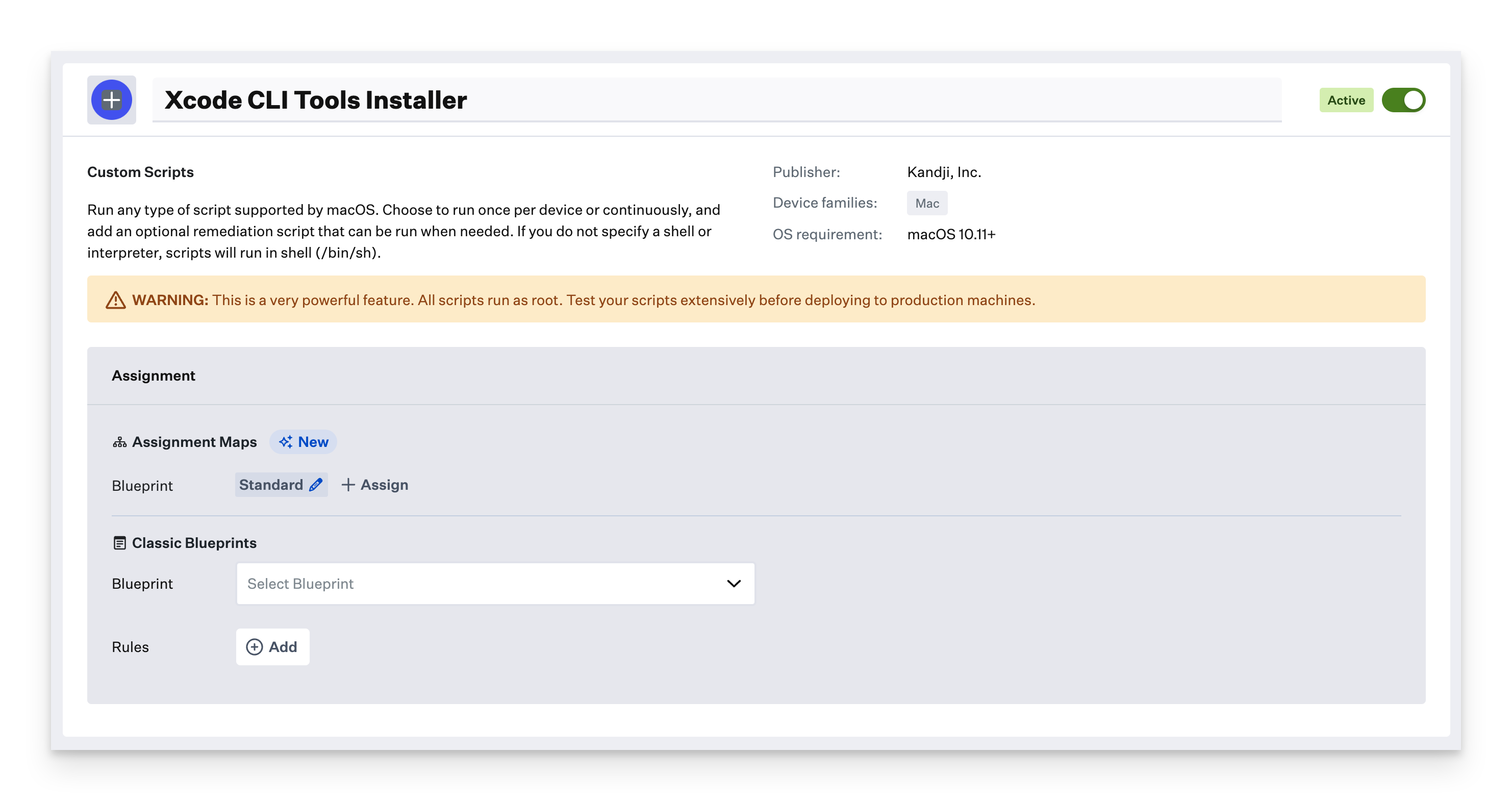
- In the Kandji web app, go to Library and click Add Library Item (top right).
- Select Custom Script.
- Name it "Mintive Agent Monitor Hooks".
- Assign it to the blueprint(s) for devices running Claude Code or Cursor.
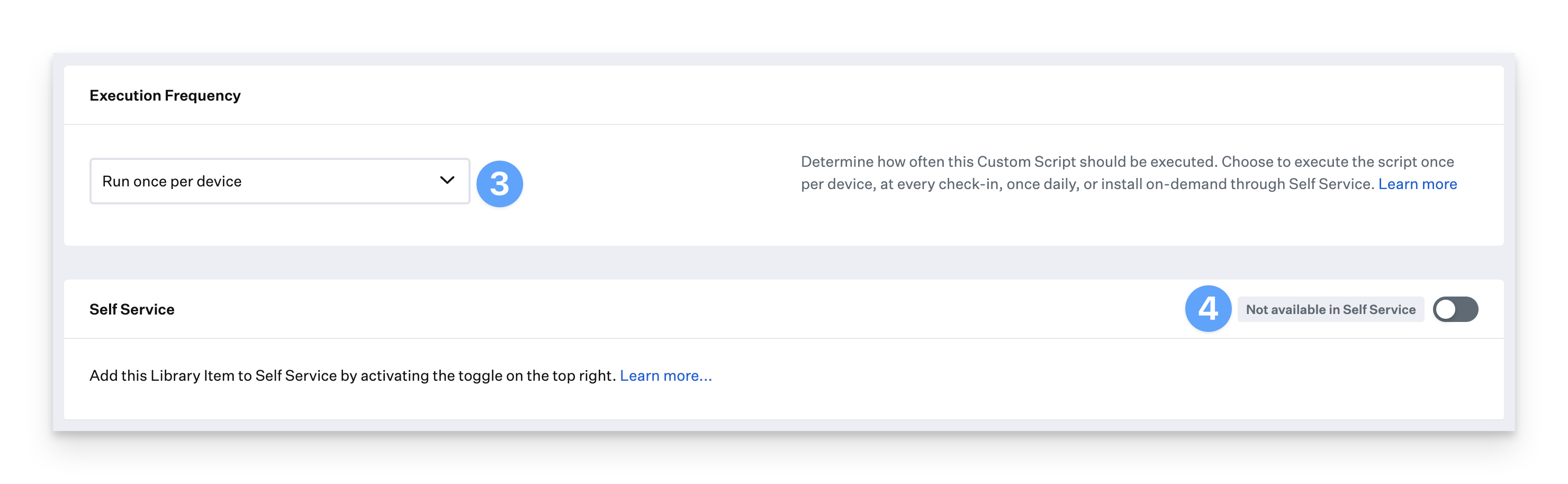
- Set Execution Frequency to Run once per device. If the script fails, Kandji automatically retries on following check-ins.
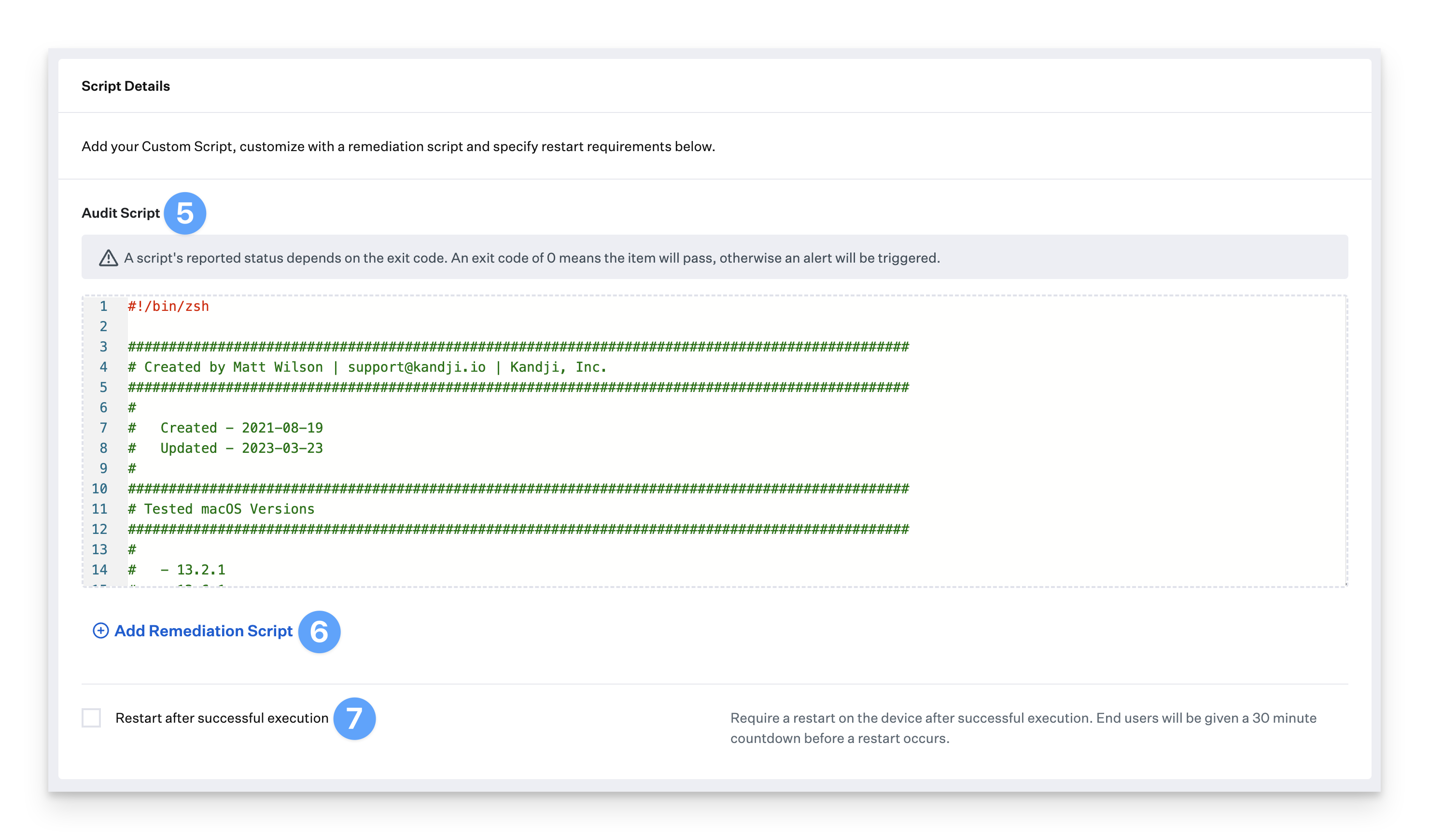
- Paste the script (with your org key filled in) into the Audit Script field.
- Click Save.
Kandji deploys the script on the next device check-in (roughly every 15 minutes).
Validate on a test device
Confirm the files exist and contents look correct:
- Claude Code
- Cursor
cat "/Library/Application Support/ClaudeCode/managed-settings.json"
Launch Claude Code and perform some actions. Verify activity appears in Mintive Agent Monitor.
cat "/Library/Application Support/Cursor/hooks.json"
cat "/Library/Application Support/Cursor/mint.sh"
Launch Cursor and perform some actions. Verify activity appears in Mintive Agent Monitor.
Hook events captured
- Claude Code
- Cursor
| Hook | Description |
|---|---|
PreToolUse | Fired before any tool execution (Bash, Edit, Write, etc.) |
PostToolUse | Fired after any tool execution completes |
UserPromptSubmit | Fired when the user submits a prompt |
| Hook | Description |
|---|---|
beforeSubmitPrompt | Fired when the user submits a prompt |
beforeShellExecution | Fired before a shell command runs |
afterShellExecution | Fired after a shell command completes |
beforeMCPExecution | Fired before an MCP tool runs |
afterMCPExecution | Fired after an MCP tool completes |
beforeReadFile | Fired before a file is read |
afterAgentResponse | Fired after the agent responds |
Troubleshooting
Reach out to support@mintmcp.com if you have issues.