Set up the Okta MCP server (Remote)
Connect the Okta Managed MCP Server to MintMCP so your team can manage users, groups, applications, and governance workflows through their own Okta identity. Okta hosts the server, MintMCP brokers the OAuth flow and logs every tool call, and each member's granted scopes decide which tools load for them.
Prerequisites
- A MintMCP admin account
- Okta super administrator access
- A subscription to IT Products - Okta Managed MCP Server with either the Core Identity or Identity Governance SKU
The Okta Managed MCP Server is in beta as an Okta Early Access feature, so it's off by default and isn't available in FedRAMP or DoD environments. If the Okta Managed MCP Server toggles don't appear under Settings > Features in your org, the feature hasn't been made available to you yet: ask your Okta account team or open a case with Okta Support to request it before continuing.
Enable the feature in Okta
-
In the Okta Admin Console, go to Settings > Features.
-
Turn on Okta Managed MCP Server - Core Identity for the Universal Directory, SSO, MFA, and Lifecycle Management APIs, or Okta Managed MCP Server - Identity Governance for the OIG APIs.
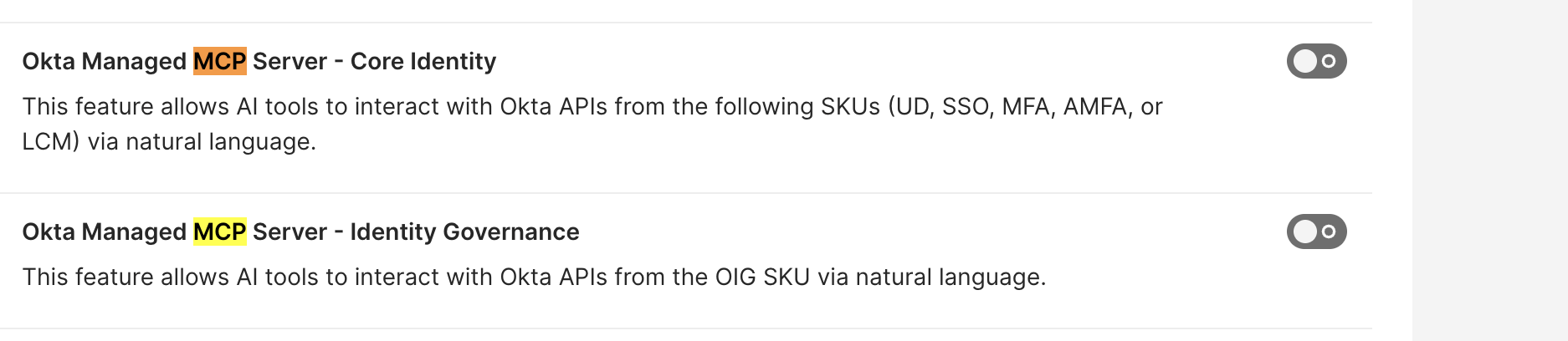
Turn on both if your team needs IAM and OIG tools in the same connector.
Create the Okta app integration
Okta's MCP endpoint doesn't support dynamic client registration, so MintMCP connects through an OIDC app you create yourself.
-
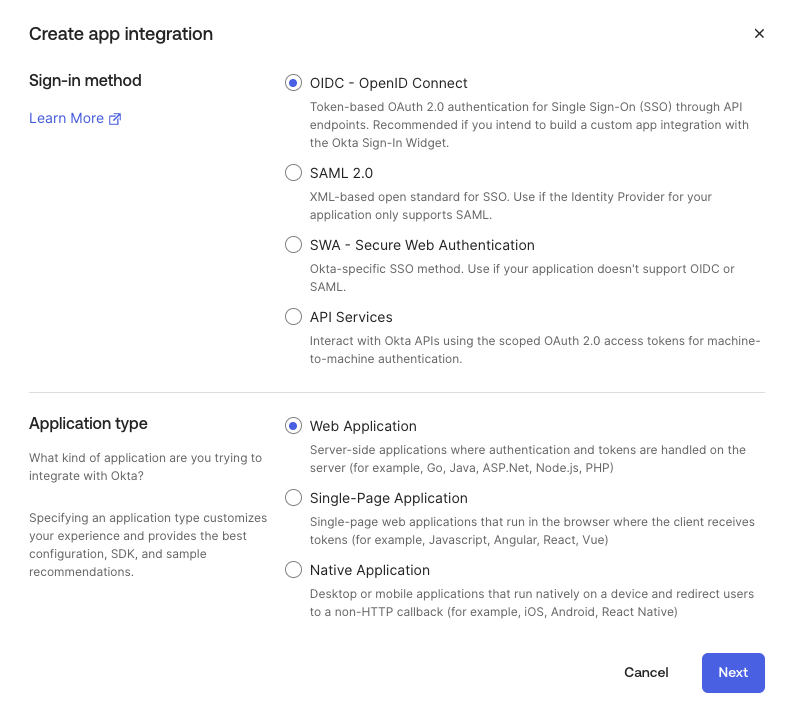
Go to Applications and Resources > Applications, then click Create App Integration.
-
Select OIDC - OpenID Connect as the sign-in method and Web Application as the application type, then click Next.
-
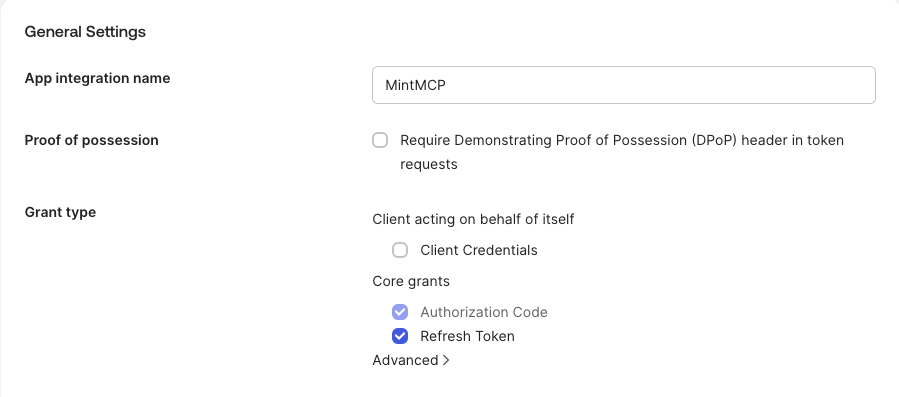
Enter an App integration name such as
MintMCP. -
Leave Proof of possession unchecked. DPoP isn't compatible with the gateway's token handling.
-
Under Grant type, keep Authorization Code and Refresh Token selected, and leave Client Credentials unchecked. Refresh tokens keep members from re-authorizing every hour.
-
In Sign-in redirect URIs, enter the callback for your MintMCP region:
MintMCP region Redirect URI US https://app.mintmcp.com/oauth/callbackEU https://eu.mintmcp.com/oauth/callback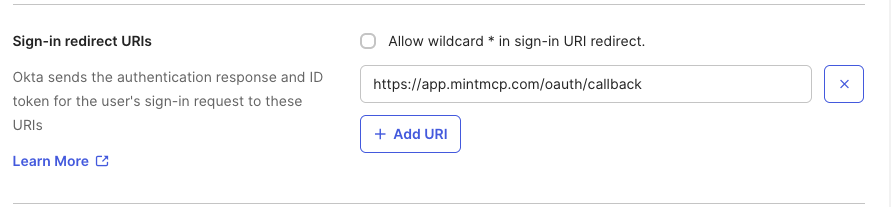
-
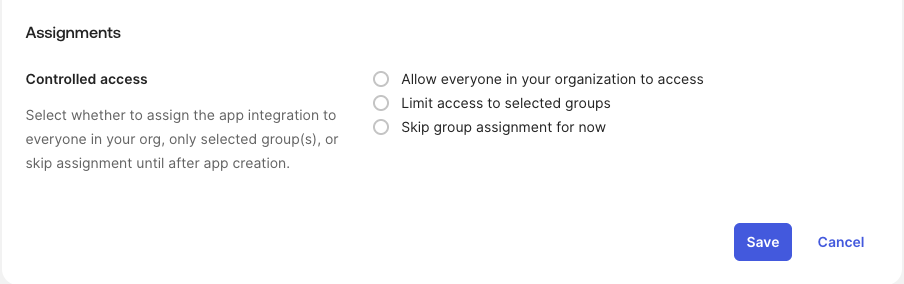
Under Assignments, choose who can reach the server. Assignment controls who can connect at all, and scopes control what they can do once connected, so a member who isn't assigned can't use the connector no matter which scopes you grant.
-
Click Save, then copy the Client ID and Client secret from the General tab.
If admins and end users need different levels of access, create a separate app (and a separate MintMCP connector) for each group rather than granting one app the union of both scope sets.
Grant API scopes
The scopes you grant decide which tools the server loads. A tool whose scope is missing from the access token never appears in the tool list.
The recommended Okta (Remote) entry in the MintMCP MCP store requests these scopes by default, so grant them here unless you trim the list at install: okta.users.read, okta.groups.read, okta.apps.read, okta.policies.read, okta.policies.manage, and okta.logs.read.
-
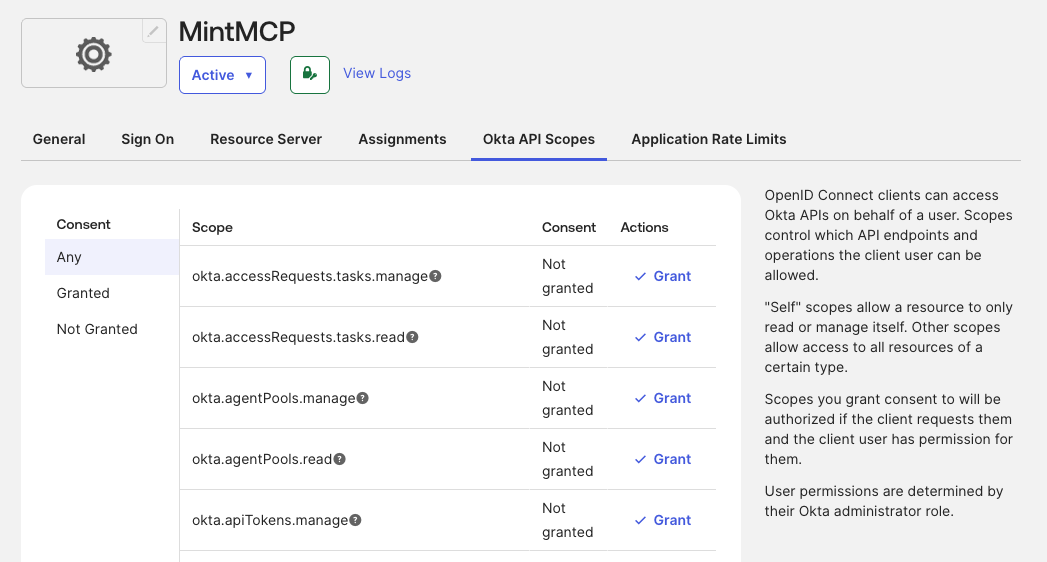
Open the Okta API Scopes tab on the app.
-
Click Grant for each scope the group needs.
| Tool | Type | Scopes |
|---|---|---|
okta_user_management | IAM | okta.users.read, okta.users.manage |
okta_group_management | IAM | okta.groups.read, okta.groups.manage |
okta_application_management | IAM | okta.apps.read, okta.apps.manage |
okta_access_management | IAM | okta.policies.read, okta.policies.manage |
okta_syslog | IAM | okta.logs.read |
okta_device_management | IAM | okta.deviceAssurance.read, okta.deviceAssurance.manage |
okta_customization_management | IAM | okta.brands.*, okta.templates.*, okta.domains.*, okta.emailDomains.* |
okta_identity_governance | OIG | okta.governance.accessRequests.*, okta.governance.accessCertifications.*, okta.governance.entitlements.*, okta.governance.delegates.*, okta.accessRequests.* |
Start with the read scopes for the areas your team works in, then add manage scopes only where write access is required.
Add the server to MintMCP
The Okta Managed MCP Server is listed as Okta (Remote) among the recommended servers in the MintMCP MCP store, with OAuth, per-user credentials, and the endpoint override already set. You supply the domain, the client ID and secret from the app you created above, and the scopes you granted.
-
In MintMCP, go to MCP store > Manage store.
-
Find Okta (Remote) in the recommended servers list and click Install.
-
Enter your Okta domain so the connector points at
https://<your-okta-domain>/mcp, for examplehttps://acme.okta.com/mcp. -
Under OAuth Client Advanced Settings, paste the Client ID and Client Secret from your Okta app.
-
Under Override OAuth endpoints, replace
{your-okta-domain}in the prefilled Authorization URL and Token URL with the same domain, and edit Scopes so it matches what you granted in Okta:Field Value Authorization URL https://<your-okta-domain>/oauth2/v1/authorizeToken URL https://<your-okta-domain>/oauth2/v1/tokenScopes The scopes you granted, comma-separated, plus openid,profile, andoffline_accessToken Endpoint Auth Method client_secret_postThe field comes prefilled with the default scopes listed under Grant API scopes plus the three OpenID scopes. It's what MintMCP requests at sign-in, so a scope you granted in Okta but leave out here never reaches the access token, and a scope listed here but not granted in Okta fails the sign-in.
-
Click Install.
Members then connect through MintMCP, complete the Okta sign-in once, and the server loads the tools their scopes allow.
Security considerations
- Authentication: Every request runs as the member's own Okta identity through authorization code with PKCE. Okta doesn't accept API keys for this server.
- Authorization: Okta enforces the access token's scopes at the tool registry and again at execution time, and MintMCP layers its own tool customization on top so you can hide tools the scopes would otherwise allow.
- Audit trail: MintMCP logs each tool call against the member who made it, and the matching Okta System Log events record the same actions against their Okta user.
- Rate limits: The endpoint allows 100 requests per minute per org, on top of Okta's standard API rate limits.
- Least privilege: Assignment and scopes are independent controls, so pair a narrow group assignment with a narrow scope grant rather than relying on either alone.
Troubleshooting
- Members see no tools after connecting: the access token carries no matching scopes. Check that each scope is granted on the app's Okta API Scopes tab and listed in the connector's Scopes field, then have the member reconnect so a new token is issued.
- Sign-in fails with "User is not assigned to the client application": the member isn't in the app's assignment list. Add their user or group under Assignments.
redirect_urimismatch: the sign-in redirect URI in Okta doesn't match the callback for your MintMCP region. It must behttps://app.mintmcp.com/oauth/callback(US) orhttps://eu.mintmcp.com/oauth/callback(EU) exactly.- DPoP or proof-of-possession errors: Require Demonstrating Proof of Possession (DPoP) header in token requests is still on. Uncheck it under General Settings.
- Members are prompted to re-authorize often: Refresh Token isn't selected as a grant type on the app.
- The feature toggles aren't listed under Settings > Features: the Early Access feature isn't enabled for your org yet. Request it through your Okta account team or Okta Support.
- OIG tools missing while IAM tools work: the Identity Governance feature flag is off, or the OIG scopes weren't granted.
Next steps
- Tool customization: Control which Okta tools reach your members
- MCP gateway administration: Manage access and permissions
- Cross app access (XAA): Let Okta govern connector authorization instead of a per-connector consent flow