Set up the Halo MCP server
Halo's MCP server gives AI agents access to ticket management, knowledge base search, asset lookup, and runbook execution across HaloPSA, HaloITSM, and HaloCRM. This guide covers enabling the MCP endpoint in Halo, registering an OAuth application, and connecting your instance to MintMCP.
Prerequisites
- A MintMCP admin account
- Halo v2.236 or later with the AI module enabled
- Access to Halo's Configuration settings
Enable the MCP endpoint in Halo
- In Halo, go to Configuration > AI.
- Verify that a Default AI Connection is configured. Halo's built-in connection is available if you haven't set up your own.
- Check Enable the MCP Endpoint.
The page shows your MCP endpoint URL in the format https://[YOURHALOURL]/api/mcp. Copy it before moving to the next section.
Register an OAuth application
-
Go to Configuration > Integrations > Halo API > View Applications.

-
Create a new application by clicking + New.
-
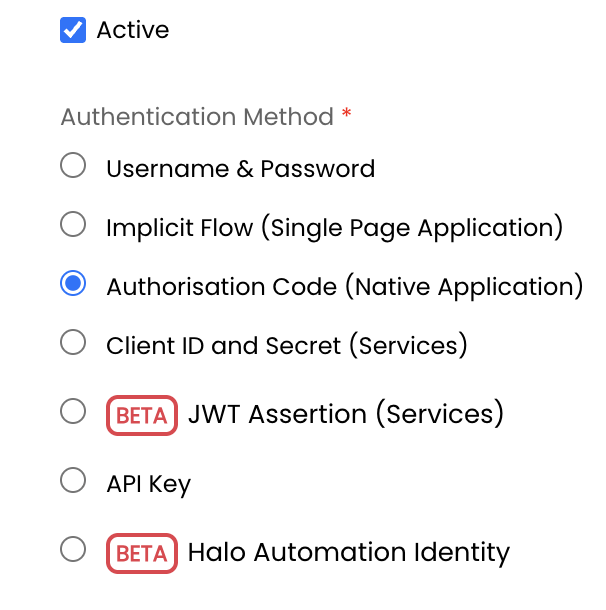
Set Authentication Method to Authorisation Code (Native Application).
-
Enable Use a client secret for the token request.

-
In Login Redirect URLs, add
https://app.mintmcp.com/oauth/callback. -
In Logout Redirect URLs, add the same URL:
https://app.mintmcp.com/oauth/callback.
-
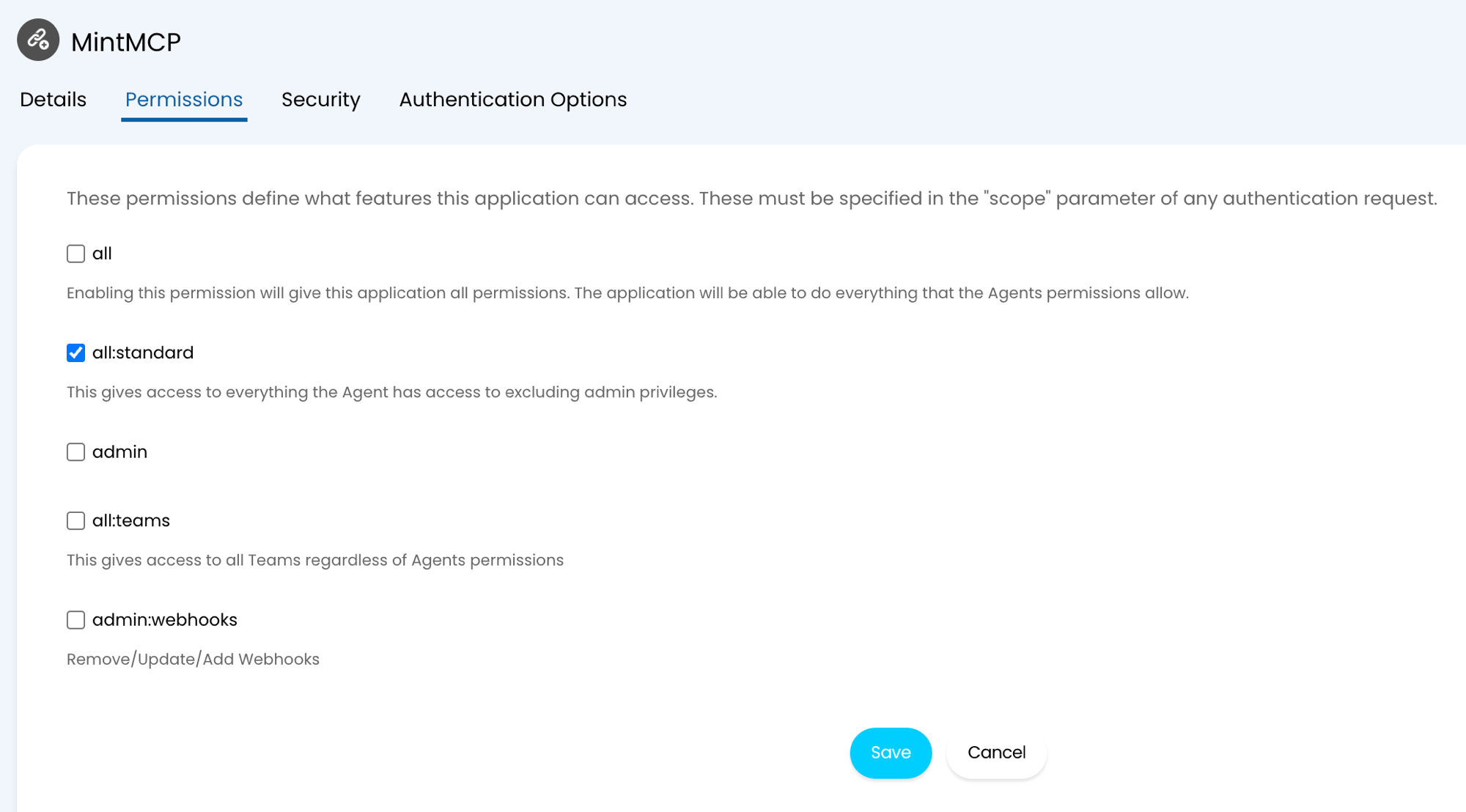
Open the Permissions tab and set the scope to all:standard.
-
Open the Security tab and add
app.mintmcp.comto the CORS Whitelist.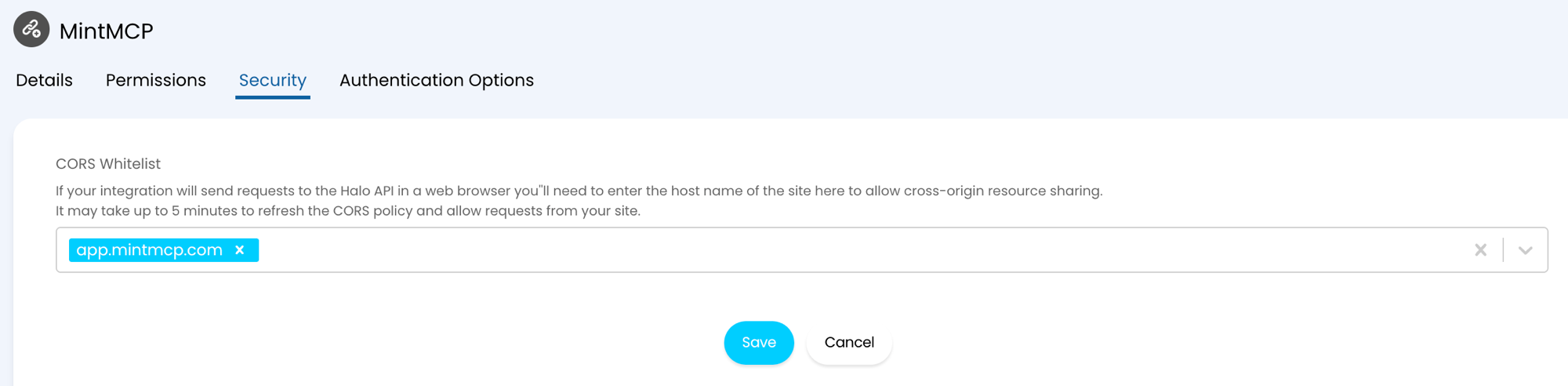
-
Save the application.
-
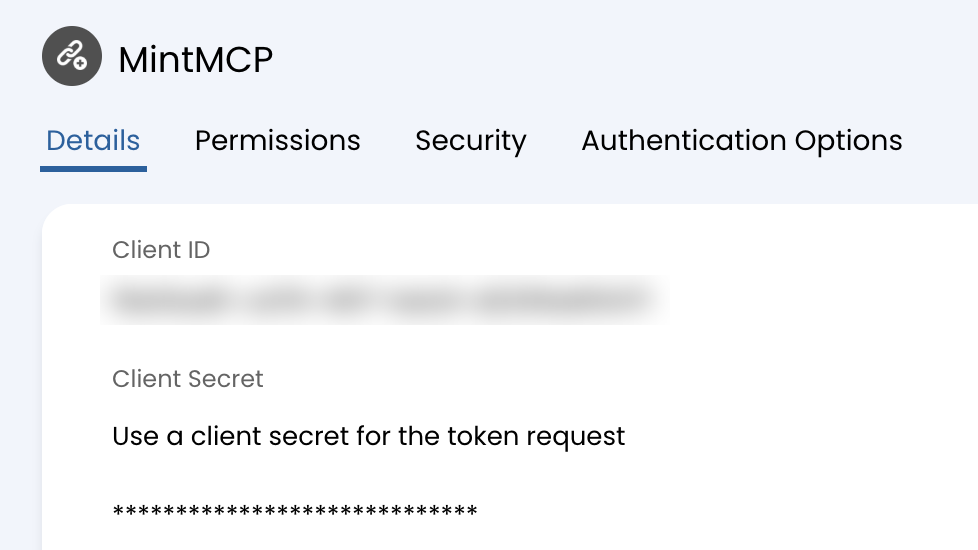
Copy the Client ID shown on the application details page.
-
To create a Client Secret, click Edit, then under Client Secret click Generate. Copy the secret immediately, since it is only shown once.
Add Halo to MintMCP
- In MintMCP, go to MCP store and open the Recommended servers tab.
- Select Halo to open the Configure Halo panel.
- In Server URL, enter your Halo MCP endpoint:
https://[YOURHALOURL]/api/mcp, replacing[YOURHALOURL]with your Halo instance domain (for example,yourcompany.halopsa.com). - Confirm Connection type is set to Per-user credentials.
- Confirm Authorization method is set to OAuth.
- Open OAuth Client Advanced Settings and paste the Client ID and Client Secret from the previous step.
- Click Install.
Security considerations
- The Client Secret is displayed only once. Copy it before closing the application page and store it securely.
- Scope is fixed to
all:standardin Halo, so there are no additional scopes to configure in MintMCP. - Each user authenticates with their own Halo identity, so actions are attributed to individual users rather than a shared account.
- Restrict the CORS Whitelist to
app.mintmcp.comonly, and remove the default Claude entries if they were pre-filled.
Troubleshooting
- AI module or MCP endpoint option not visible: the AI module must be enabled by a Halo administrator before the MCP endpoint setting appears. Refer to Halo's MCP documentation or contact Halo support.
- "Enable the MCP Endpoint" is missing after the AI module is enabled: requires Halo v2.236 or later. Check your version with Halo support.
- OAuth fails or the consent screen does not appear: confirm that both the Login and Logout Redirect URLs are set to
https://app.mintmcp.com/oauth/callbackin the Halo application settings, and thatapp.mintmcp.comis in the CORS Whitelist. - Client Secret unavailable: the secret is shown only once at generation. To get a fresh one, edit the application, then under Client Secret click Generate. This replaces the old secret, so update it in MintMCP.
Next steps
- Tool customization: control which Halo tools are exposed to users
- MCP gateway administration: manage access and permissions