Set up the Azure DevOps MCP server
The Azure DevOps MCP server gives AI agents access to work items, boards, repositories, pull requests, pipelines, wikis, test plans, search, and advanced security across your Azure DevOps organization. This guide covers configuring either Microsoft Entra OAuth or a personal access token, then adding the server from the MintMCP store.
Prerequisites
- A MintMCP admin account
- An Azure DevOps organization (sign up at dev.azure.com)
Set up Azure DevOps
Azure DevOps is pre-listed as a recommended server in the MintMCP MCP store. Pick an authentication method below — each path first sets up credentials in Azure DevOps, then installs and configures the connector in MintMCP.
Each domain maps to a group of Azure DevOps tools, enabled through the optional ADO_DOMAINS variable:
| Domain | What it covers |
|---|---|
core | Projects, teams, and members |
work | Boards and sprints |
work-items | Work item creation and management |
search | Code and work item search |
test-plans | Test plans and suites |
repositories | Repositories and branches |
wiki | Wikis and pages |
pipelines | Builds and releases |
advanced-security | Security alerts and advisories |
- Per-user OAuth (recommended)
- Personal Access Token
Per-user OAuth authenticates each team member with their own Microsoft Entra identity. The Azure DevOps organization must be connected to the same Entra tenant — verify this under Azure DevOps > Organization settings > Microsoft Entra.
Register a Microsoft Entra app
-
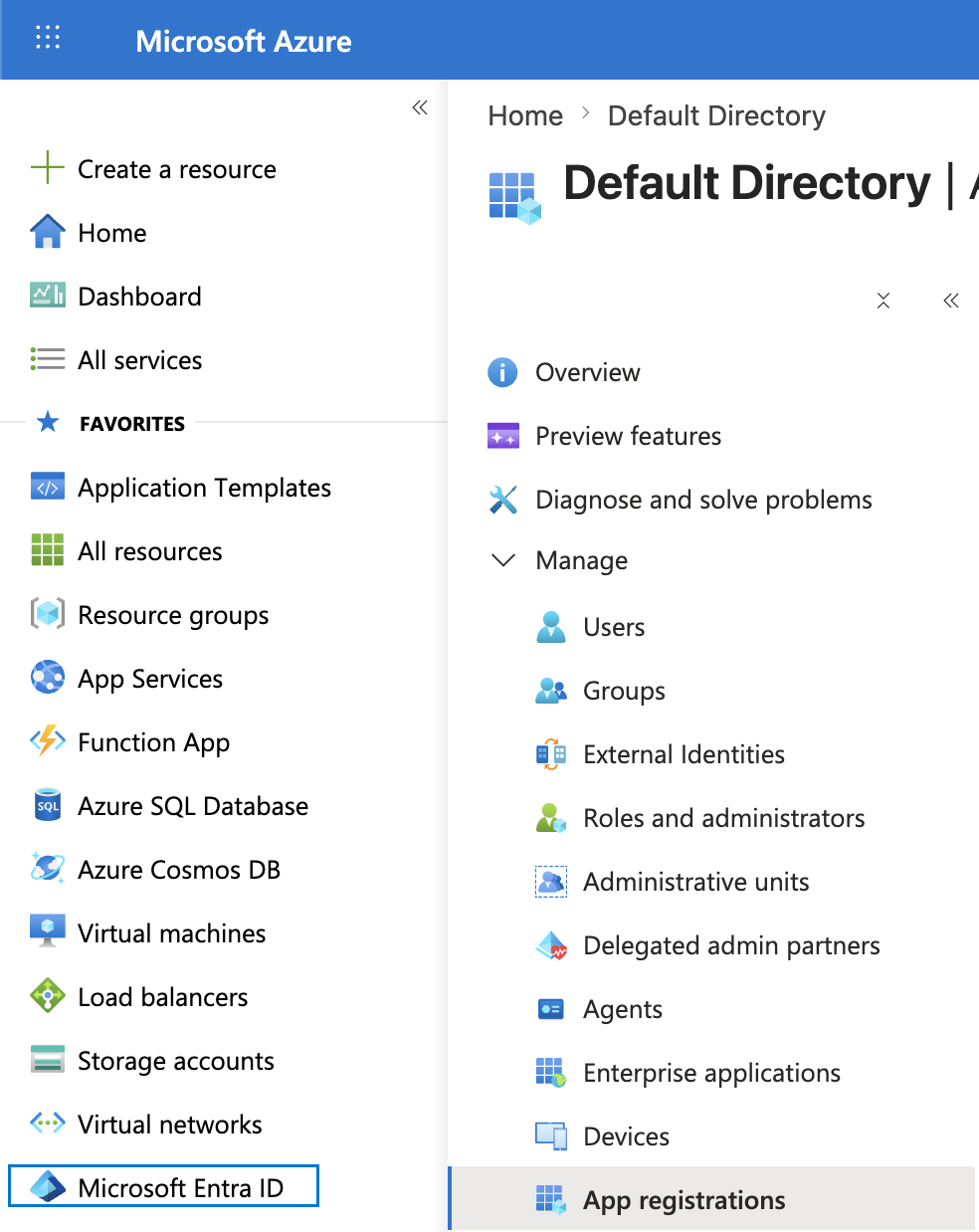
Go to portal.azure.com > Microsoft Entra ID > App registrations.
-
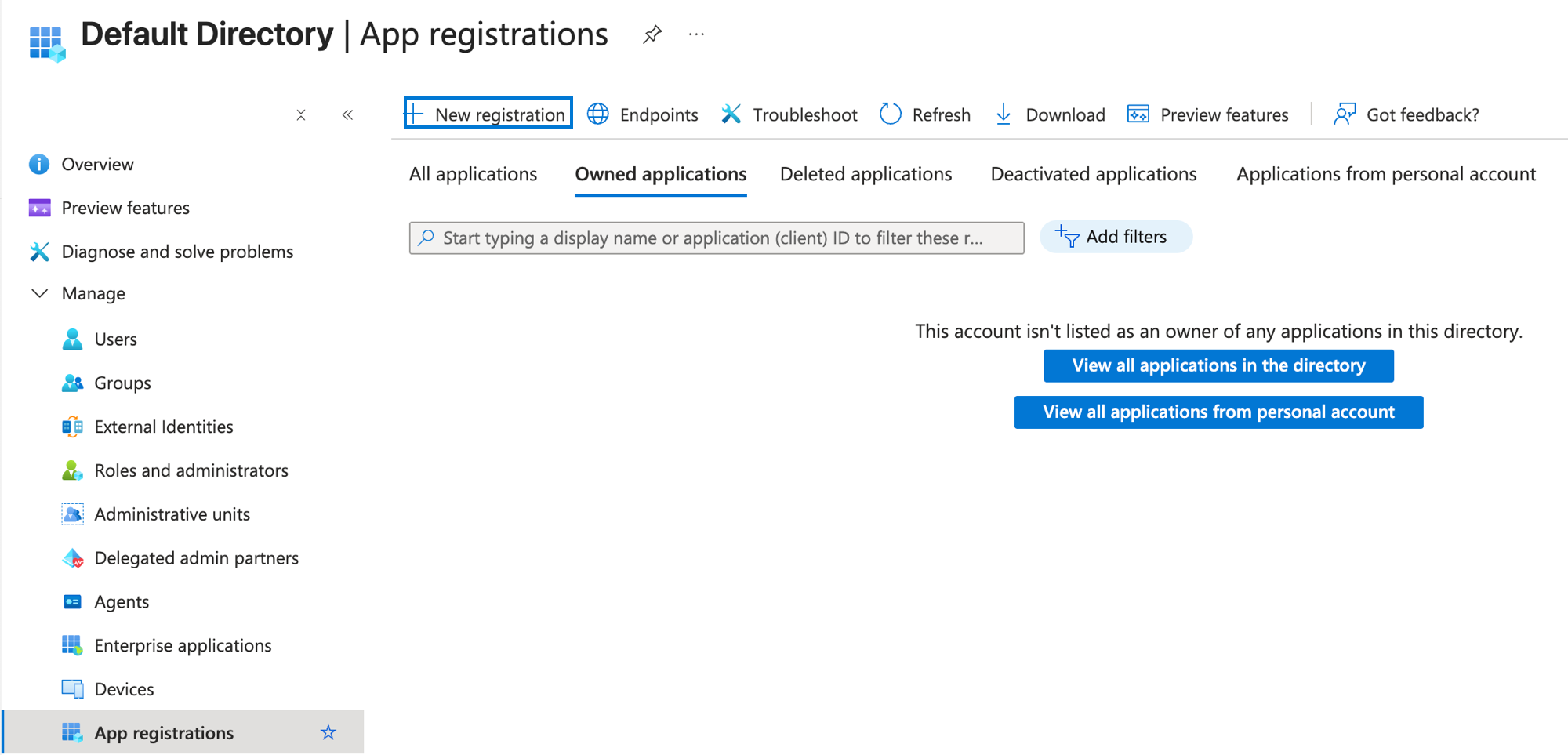
Click New registration.
-
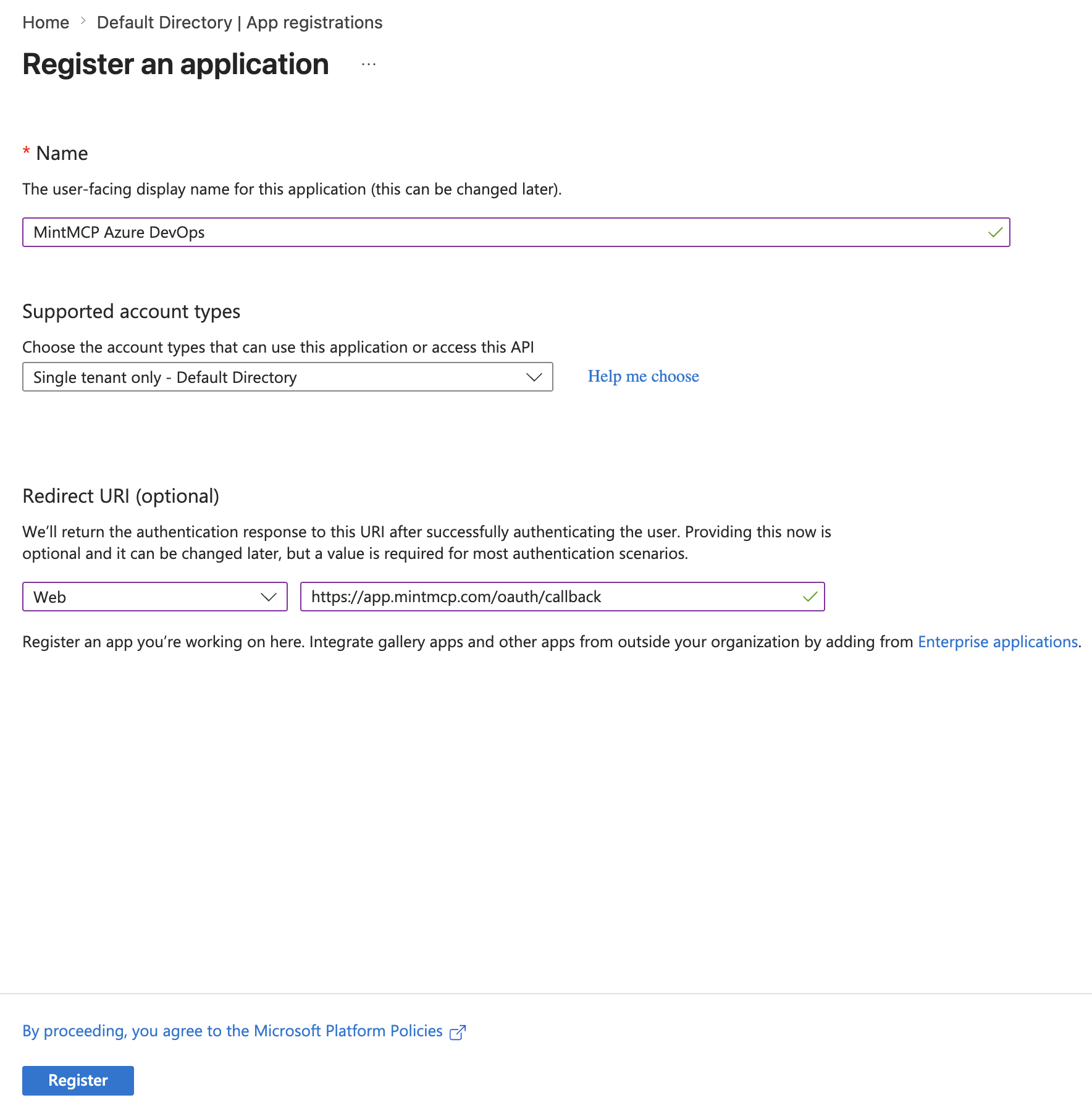
Enter a name — for example, MintMCP Azure DevOps.
-
Under Redirect URI, select Web and enter the callback for your MintMCP region:
MintMCP region Redirect URI US ( app.mintmcp.com)https://app.mintmcp.com/oauth/callbackEU ( eu.mintmcp.com)https://eu.mintmcp.com/oauth/callbackThe install panel in MintMCP shows the callback for your organization.
-
Click Register.
-
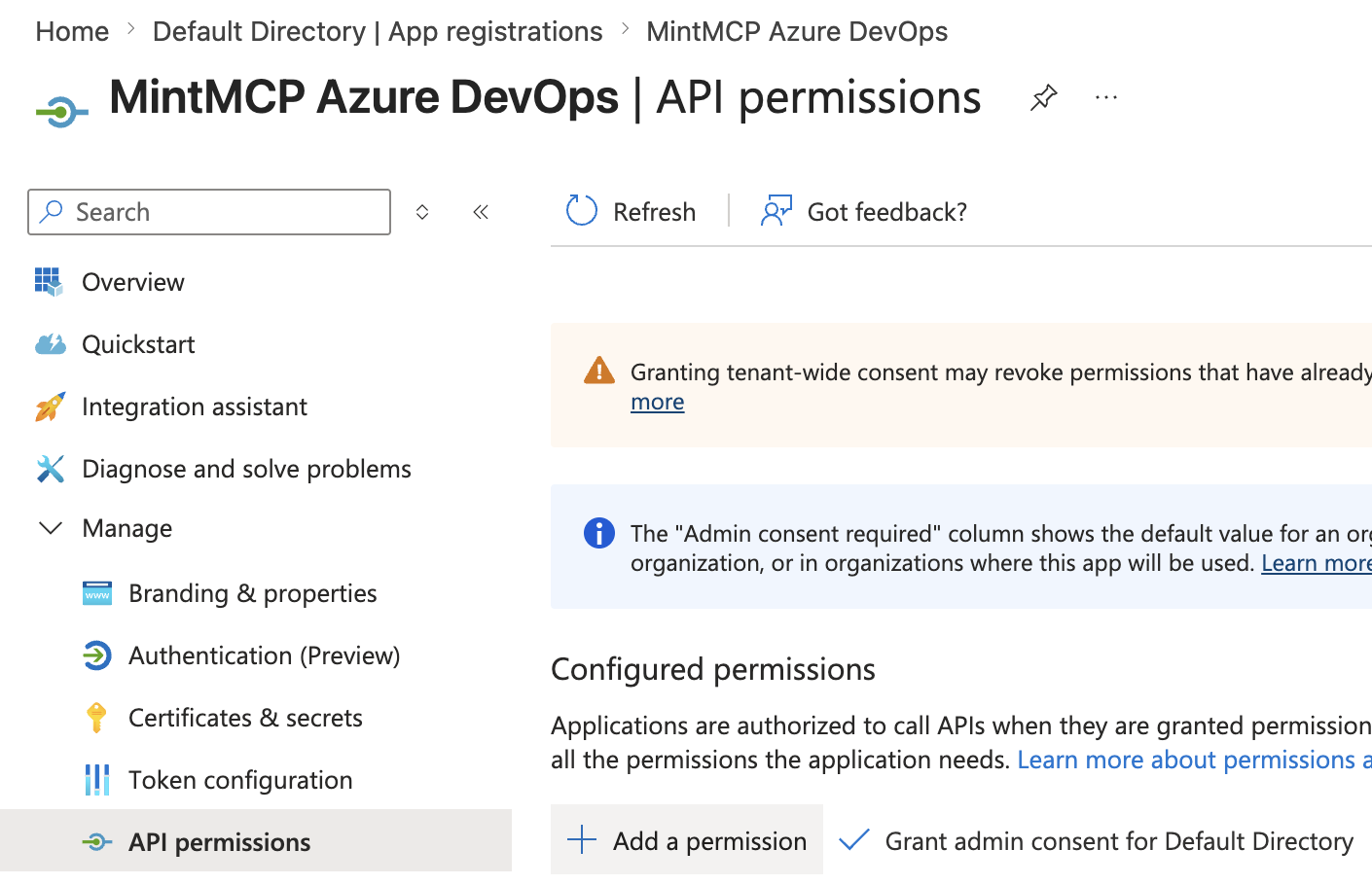
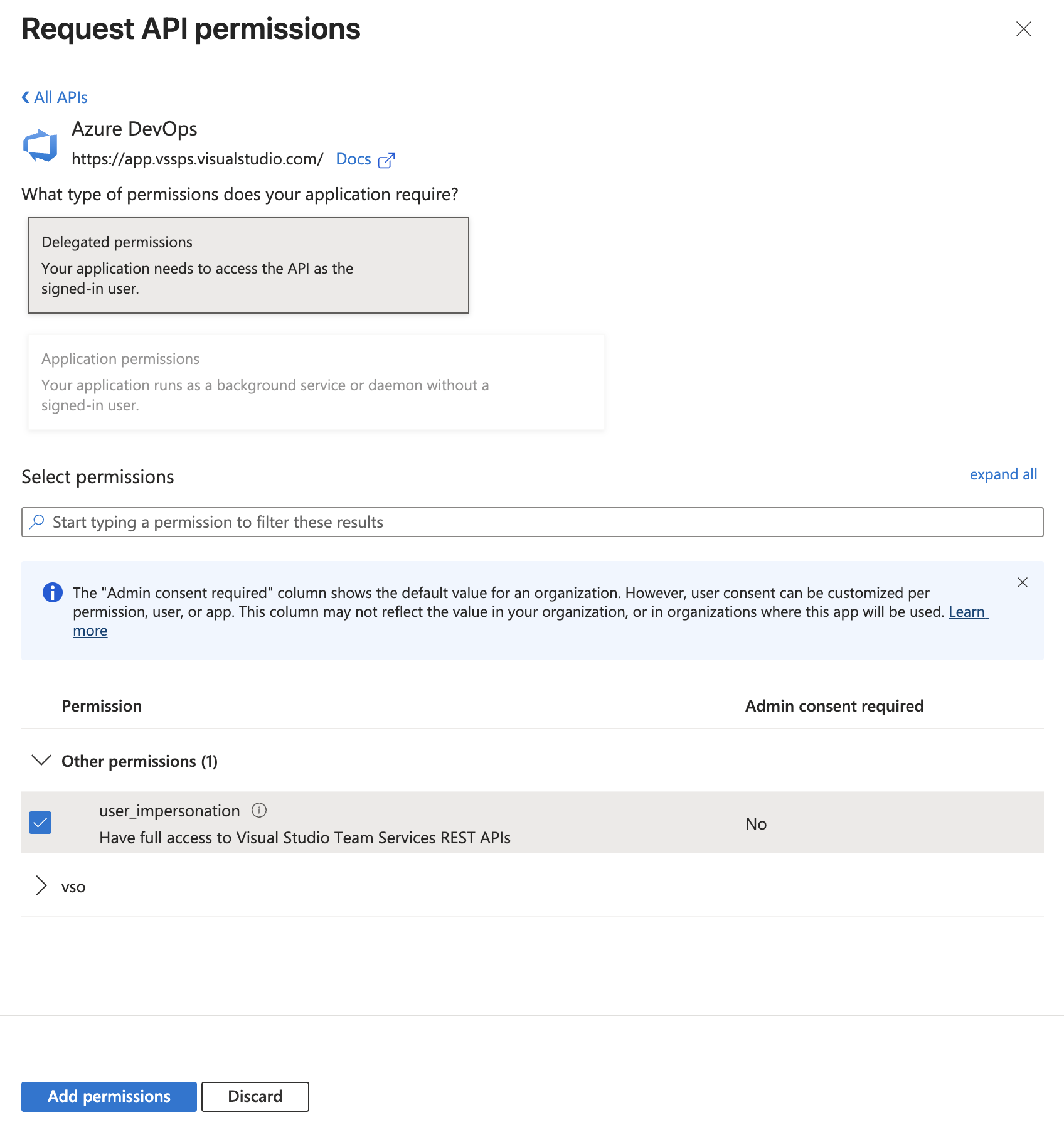
Go to API permissions > Add a permission.
-
Select Azure DevOps, then Delegated permissions, then user_impersonation.
-
Click Add permissions.
-
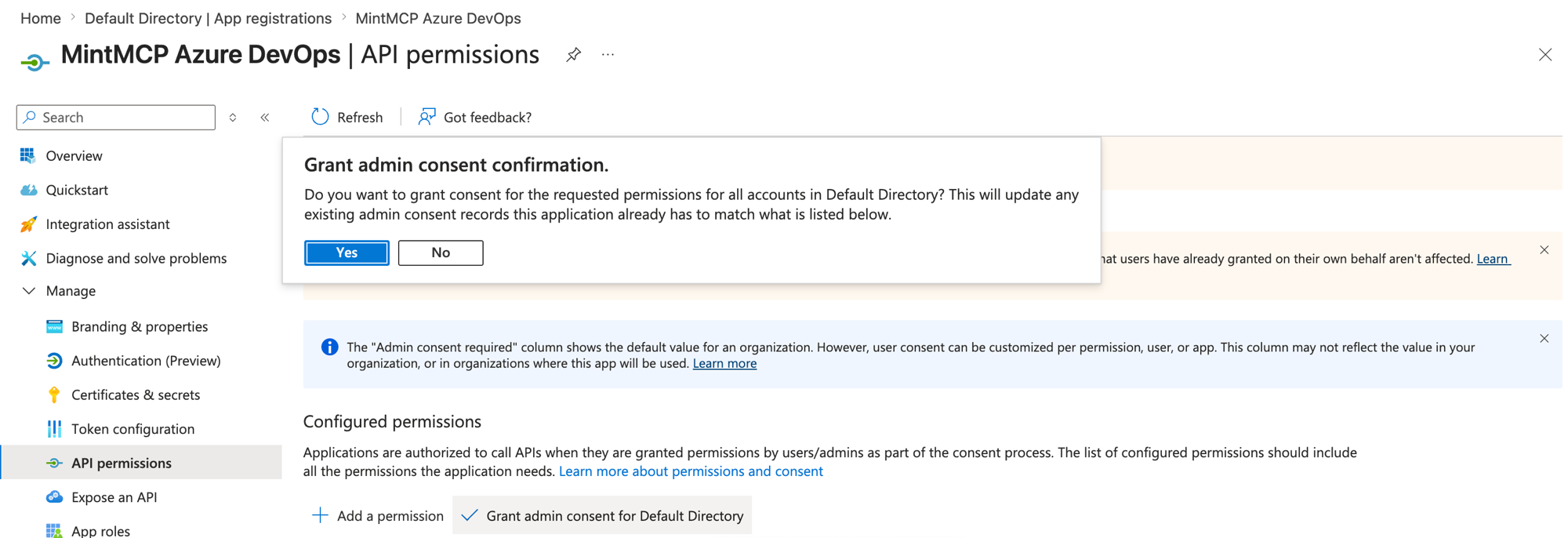
Back on the API permissions page, click Grant admin consent for [your organization] and confirm.
-
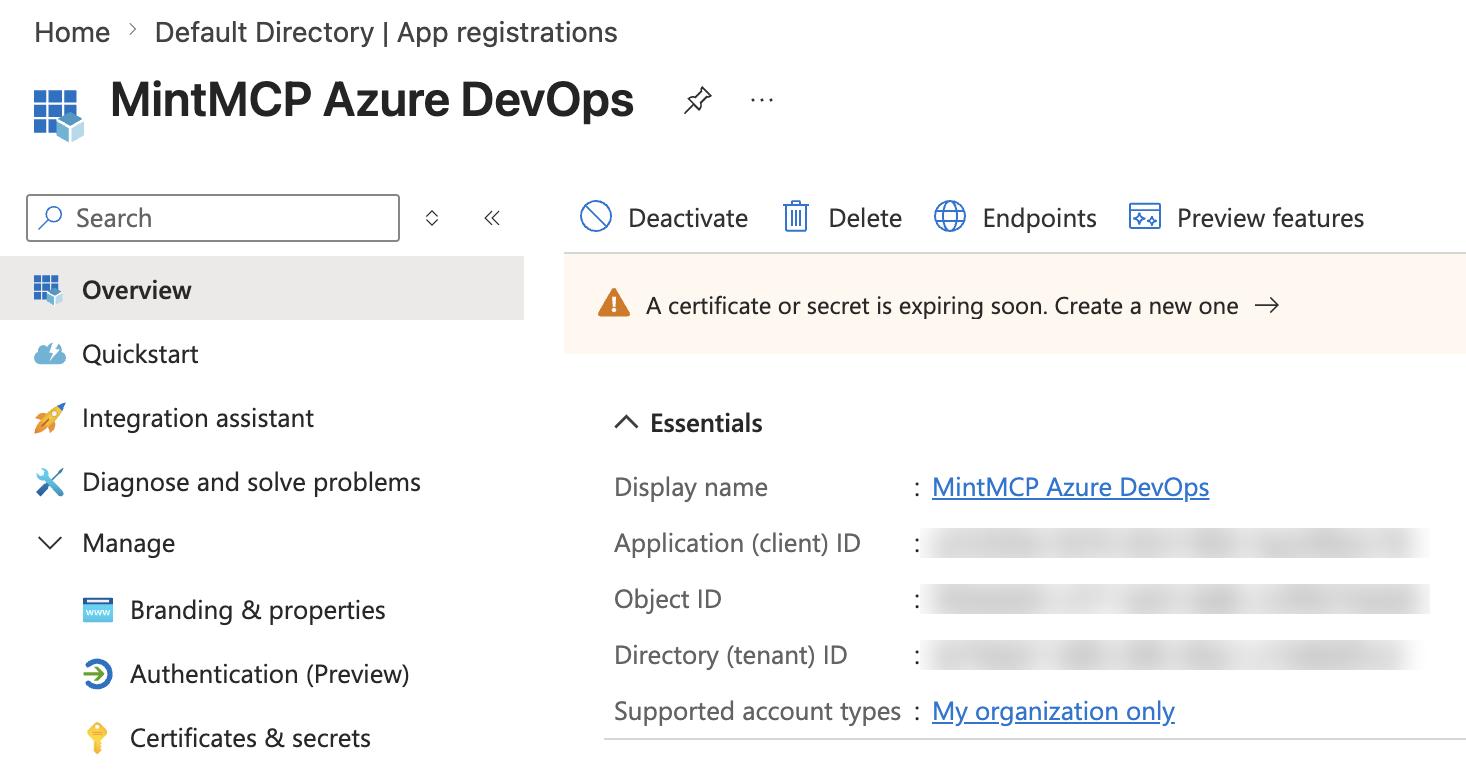
Copy the Application (client) ID and Directory (tenant) ID from the Overview tab.
-
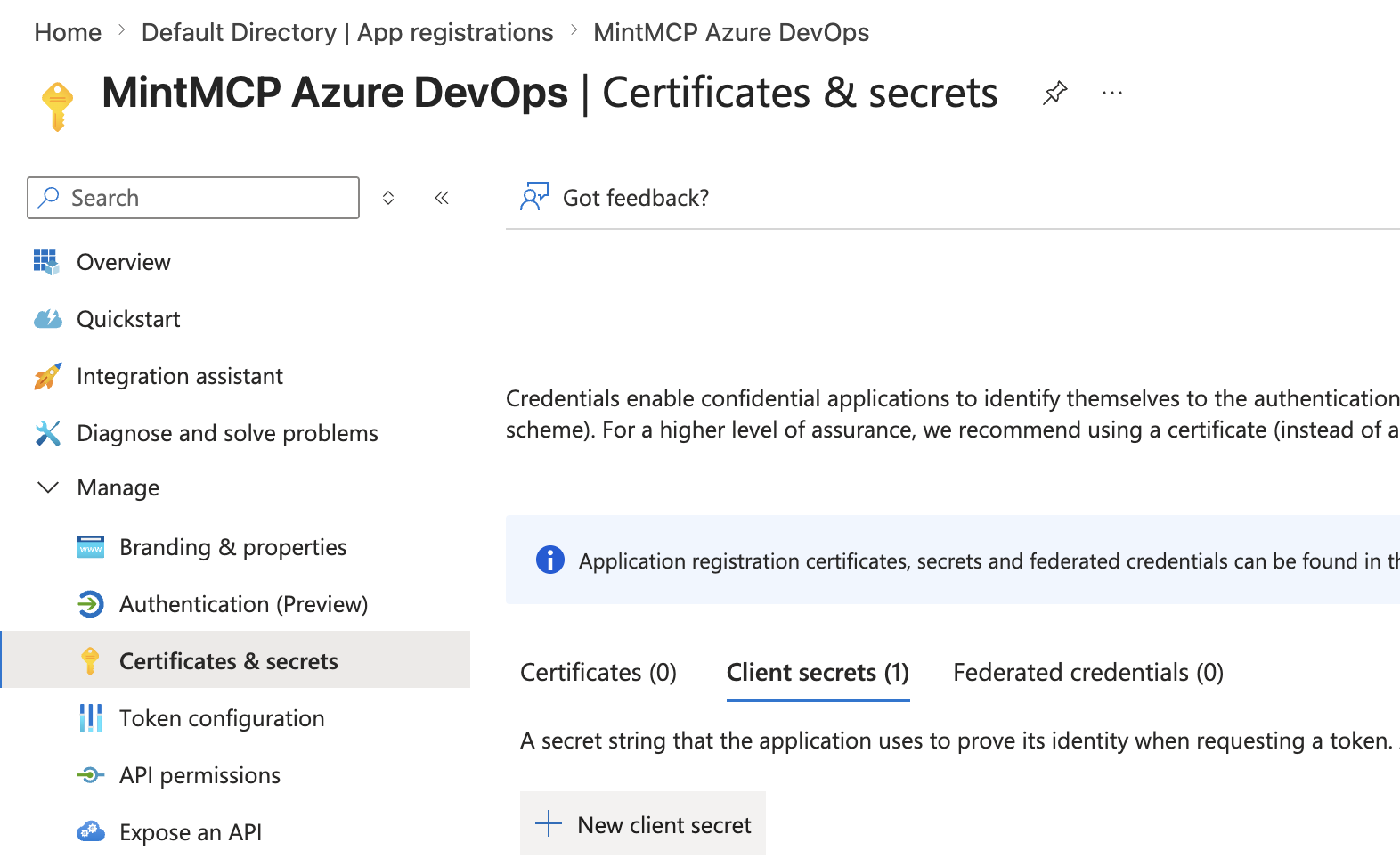
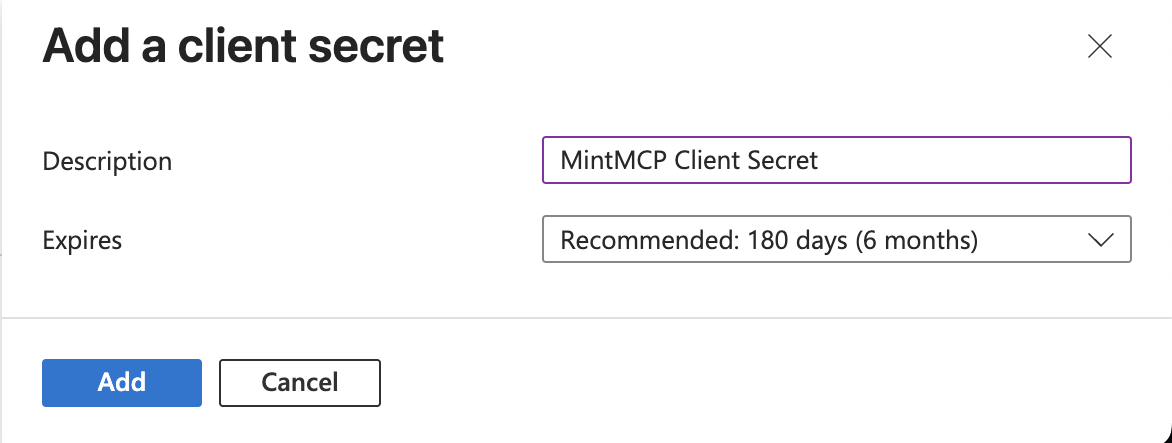
Go to Certificates & secrets > Client secrets > New client secret.
-
Enter a description and expiry, then click Add.
-
Copy the Value immediately — it is not shown again.

Add and configure the connector in MintMCP
-
In MintMCP, go to MCP store > Manage store.
-
Find Azure DevOps in the recommended servers list and click Install.
-
On the connector's configuration screen, set its environment variables:
ADO_ORGANIZATION— your Azure DevOps organization name.ADO_DOMAINS(optional) — a space-separated list of the tool domains above. Omit it to enable all domains.
-
Go to MCP store > Your registry and click the Azure DevOps connector.
-
Click Hosted Connector > Edit.
-
Scroll to Authentication, select Hosted OAuth and enter:
Field Value Authorization URL https://login.microsoftonline.com/<tenant-id>/oauth2/v2.0/authorizeToken URL https://login.microsoftonline.com/<tenant-id>/oauth2/v2.0/tokenClient ID Application (client) ID from the app registration Client Secret Client secret Value from the app registration Scopes 499b84ac-1321-427f-aa17-267ca6975798/.default offline_accessToken response to env mappings Add row and map access_tokentoADO_MCP_AUTH_TOKENReplace
<tenant-id>in both URLs with the Directory (tenant) ID you copied when registering the Entra app. -
Click Save.
When users first connect to the Azure DevOps MCP server through MintMCP, they are redirected to Microsoft to sign in with their Entra account.
Personal access tokens let each user authenticate with their own Azure DevOps credentials.
Create a personal access token
-
Go to dev.azure.com and sign into your organization.
-
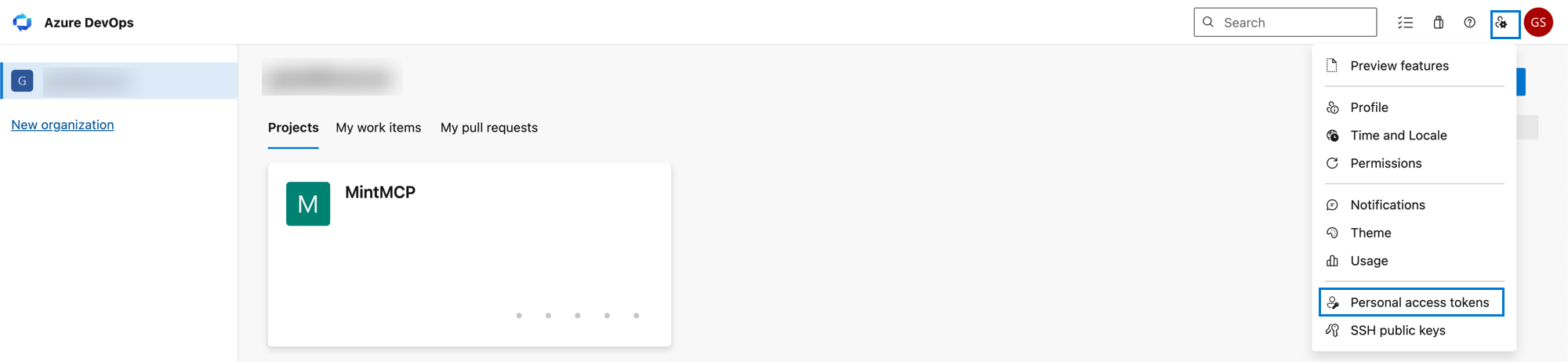
Click your profile icon, then select User settings > Personal access tokens.
-
Click + New Token.

-
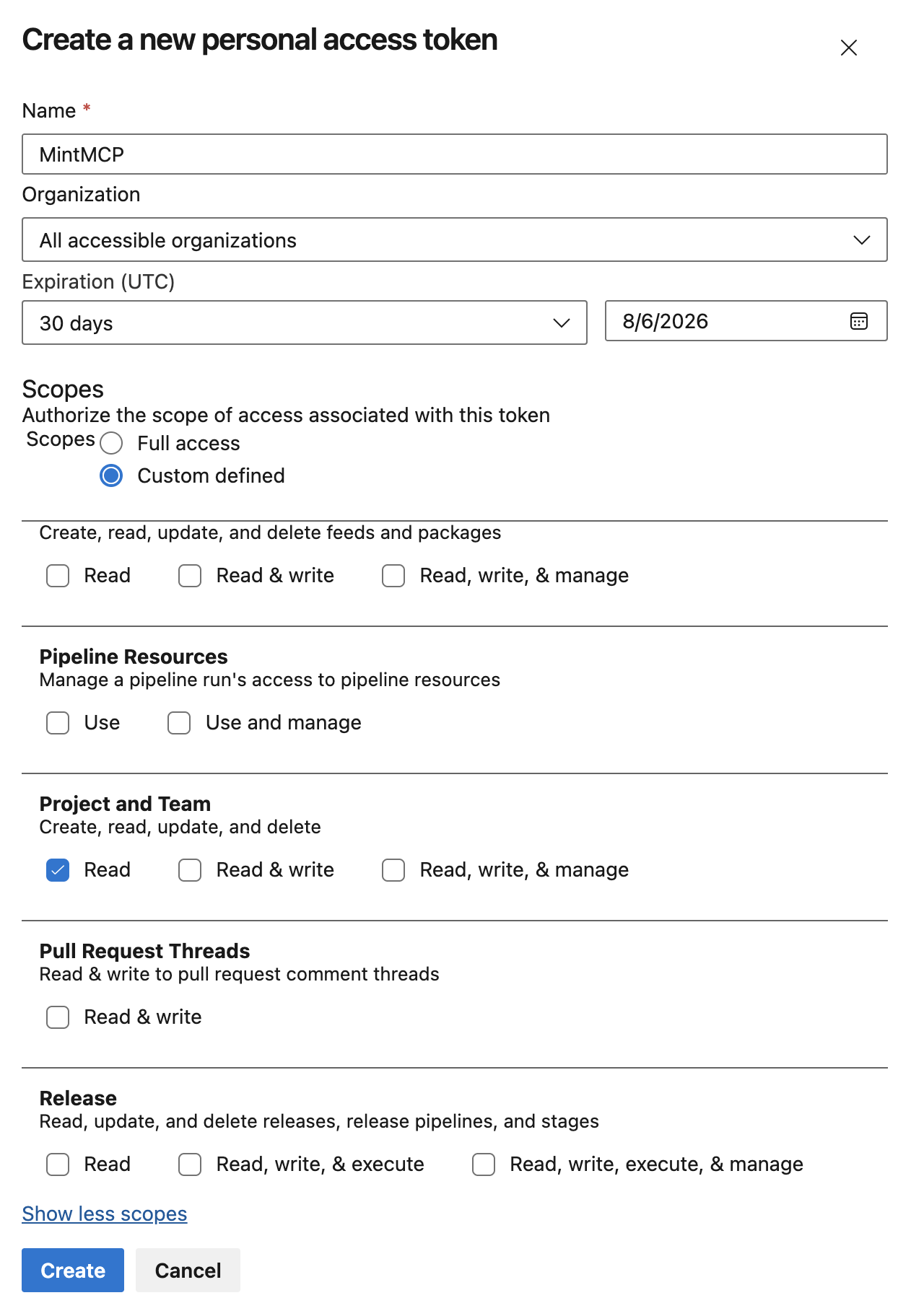
Enter a name — for example, MintMCP.
-
Select at minimum Project and Team: Read under Scopes. Add additional scopes for other domains you enabled.
-
Click Create and copy the token.
Add and configure the connector in MintMCP
- In MintMCP, go to MCP store > Manage store.
- Find Azure DevOps in the recommended servers list and click Install.
- On the connector's configuration screen, set its environment variables:
ADO_ORGANIZATION— your Azure DevOps organization name.ADO_DOMAINS(optional) — a space-separated list of the tool domains above. Omit it to enable all domains.
- Add
AZURE_DEVOPS_PATas a User-Specific environment variable.
Each user is prompted to enter their own PAT when they first connect.
Troubleshooting
AADSTS90013— The<tenant-id>placeholder was not replaced in the Authorization URL or Token URL. Paste the real Directory (tenant) ID GUID into both fields.AADSTS650052— The Azure DevOps service principal is missing from your Entra tenant. Runaz ad sp create --id 499b84ac-1321-427f-aa17-267ca6975798in the Azure CLI, then reconnect your Azure DevOps organization to the tenant under Organization settings > Microsoft Entra.401after a successful token — The Azure DevOps organization is not Entra-backed. A working PAT does not mean the org is connected to Entra. Check under Organization settings > Microsoft Entra and link the org to your tenant.
Security considerations
ADO_ORGANIZATIONis shared across all users on this connector. Credentials are per-user, so each team member acts under their own Azure DevOps identity.- OAuth ties each call to an individual Entra identity, giving you a clearer audit trail than a shared PAT.
- Keep PAT scopes minimal — grant only what the tool domains you enabled actually require.
Next steps
- Tool customization — Control which Azure DevOps tools are exposed to users
- MCP gateway administration — Manage access and permissions