Set up the Skilljar MCP server
Skilljar's MCP server gives AI agents access to your learning management system, letting them manage courses, lessons, enrollments, users, groups, and analytics. This guide covers creating an API v2 client in Skilljar to get your OAuth credentials and connecting the Skilljar MCP server to Mintive.
Prerequisites
- A Mintive admin account
- A Skilljar account with Organization admin access
Create an API v2 client
- In your Skilljar dashboard, go to Organization > API Credentials.
- Select the v2 API Clients tab.
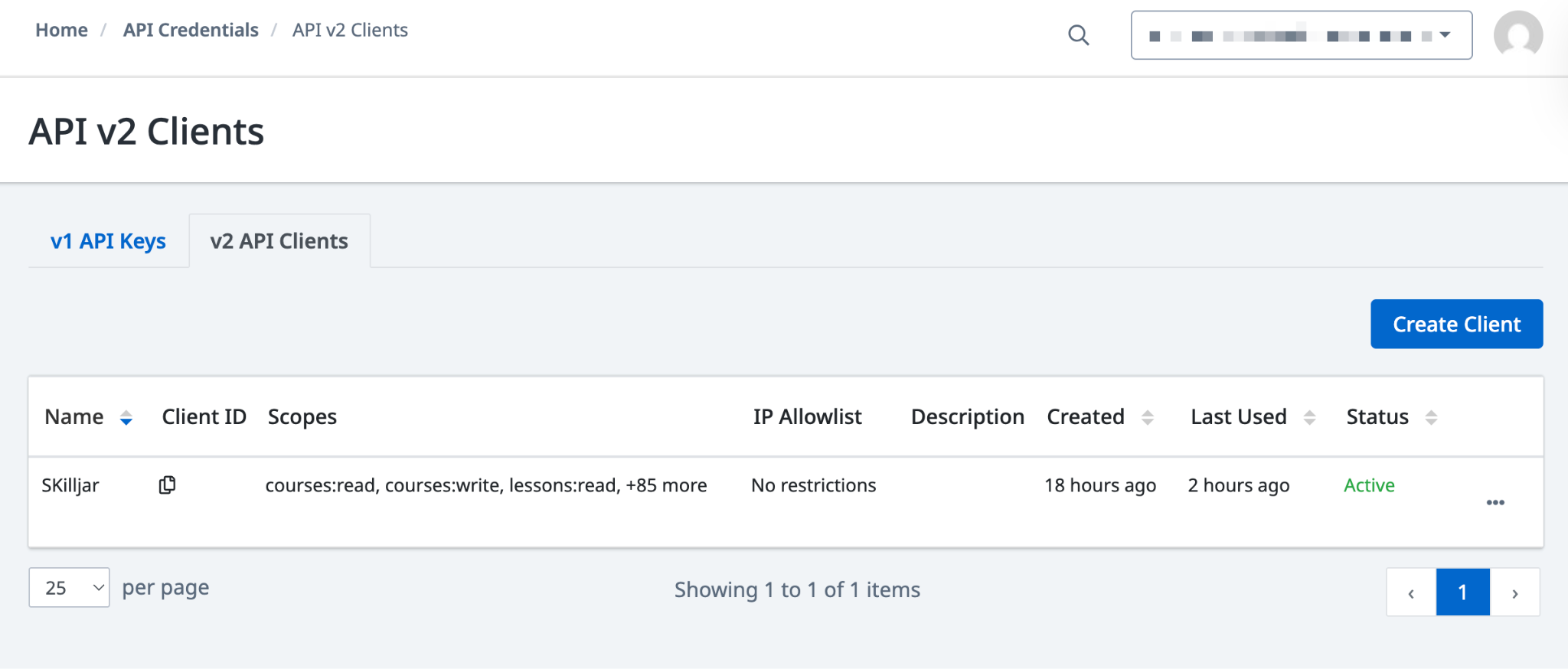
- Click Create Client.
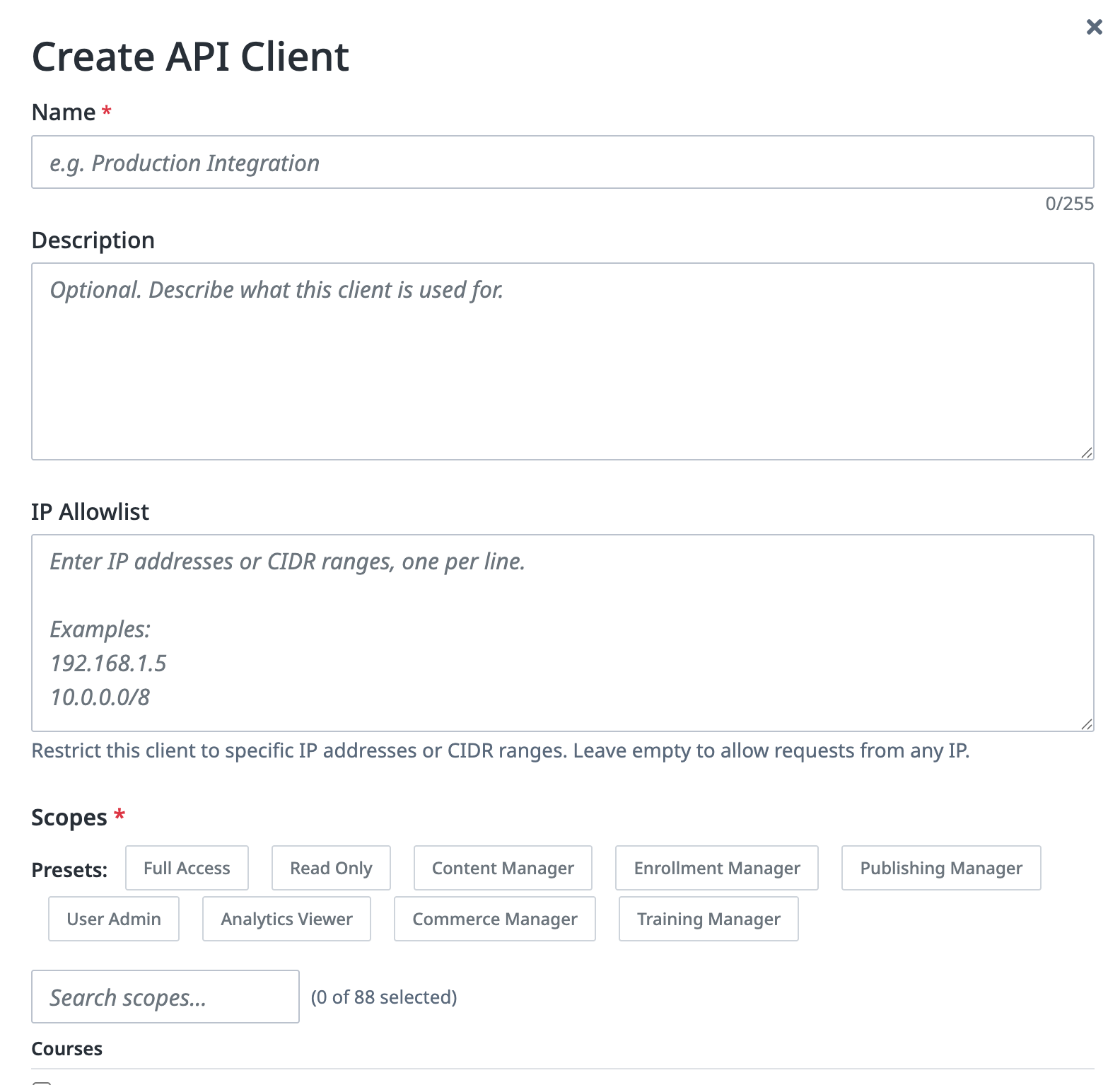
- Enter a Name (for example,
Mintive). - Under Scopes, click a preset to select the permissions the integration needs. Use the table below to choose the right preset.
| Preset | Access granted |
|---|---|
| Full Access | All read and write operations |
| Read Only | Read access to all resources |
| Content Manager | Courses, lessons, and paths |
| Enrollment Manager | Enrollments and group memberships |
| Publishing Manager | Publishing and domain management |
| User Admin | Users and account management |
| Analytics Viewer | Reports and analytics |
| Commerce Manager | Orders, coupons, and pricing |
| Training Manager | Assignments and training plans |
- Click Create Client.
Copy the client ID and secret
After clicking Create Client, Skilljar shows a Save your credentials dialog with the Client ID and Client Secret. Copy both values now; the secret is only shown once.
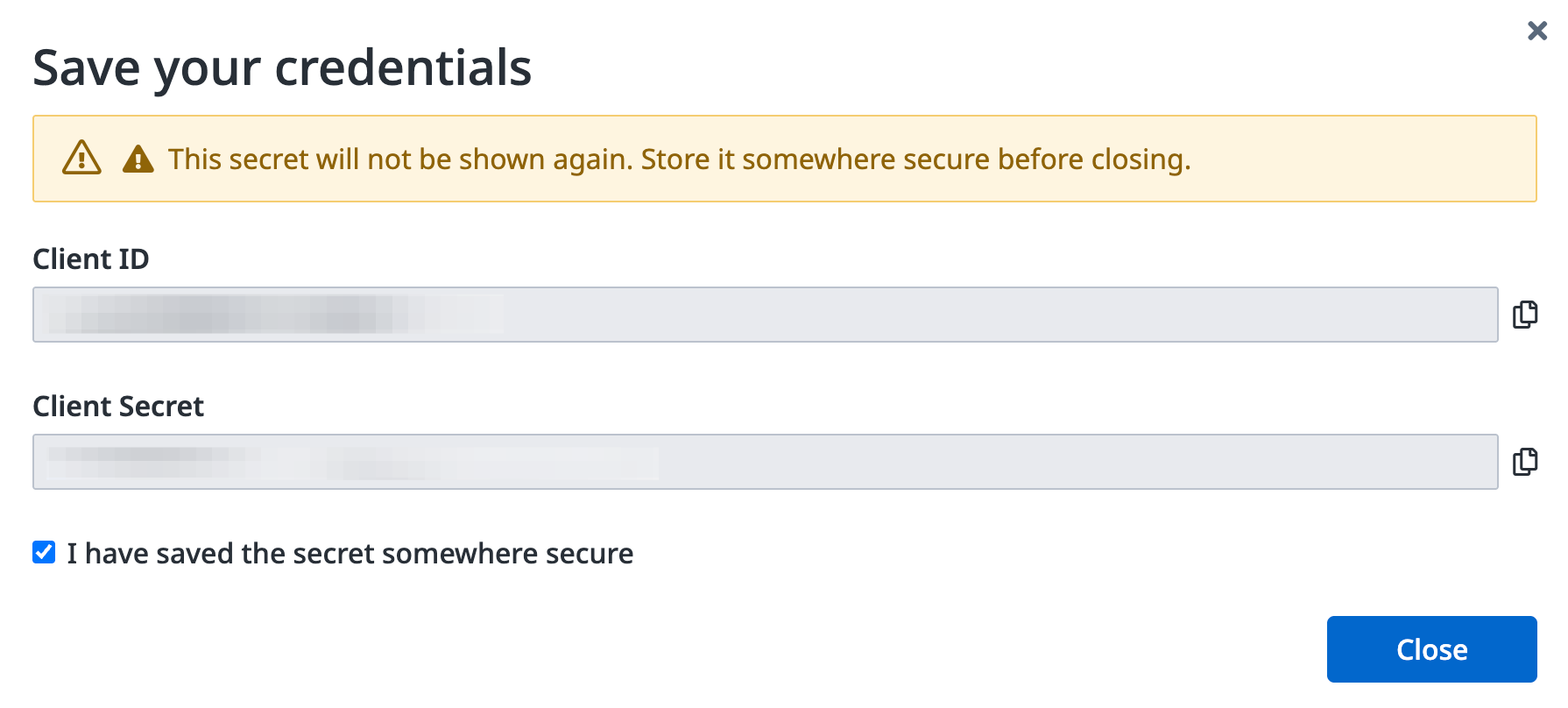
Check I have saved the secret somewhere secure and click Close.
Add Skilljar to Mintive
- In Mintive, go to MCP store > Manage store.
- Find the Skilljar MCP server in the Catalog tab and click to configure it.
- Open OAuth Client Advanced Settings and paste the Client ID and Client Secret from your Skilljar API v2 client.
- Save the configuration.
Each user who connects to Skilljar through Mintive will be prompted to sign in with their own Skilljar dashboard account the first time they use a Skilljar tool.
Security considerations
- The client secret is shown only once at creation. Store it in a secrets manager before closing the dialog.
- Each user authenticates individually, so tool actions are tied to their Skilljar identity and permissions.
- Use the narrowest scope preset that covers what the integration needs, rather than Full Access.
- The IP Allowlist field on the Create API Client form restricts which IP addresses can use the credentials. Enter Mintive's egress IPs if your org requires it.