Set up the Google Search Console MCP server
The Google Search Console MCP server provides search analytics, URL inspection, and sitemap management for any property you have access to in Search Console, plus indexing requests for the job-posting and livestream pages Google's Indexing API supports. This guide covers enabling the required Google APIs, creating an OAuth client in Google Cloud, and connecting the server to MintMCP.
Prerequisites
- A MintMCP admin account
- A Google Cloud project with an OAuth consent screen already configured, plus permission to enable APIs and create OAuth credentials
- Access to at least one property in Google Search Console
Enable the APIs
- Go to console.cloud.google.com and select or create a project.
- Go to APIs & Services → Library and enable both:
- Google Search Console API — search analytics, sitemaps, URL inspection
- Web Search Indexing API — submit and remove job-posting and livestream pages
Create the OAuth client
The OAuth client gives MintMCP a client ID and secret to broker each user's Google sign-in. The Google Cloud OAuth flow is the same as the Google Ads MCP setup — the screens are identical.
-
Go to console.cloud.google.com/auth/clients and click Create client.
-
Set Application type to Web application and give it a name (for example,
MintMCP OAuth).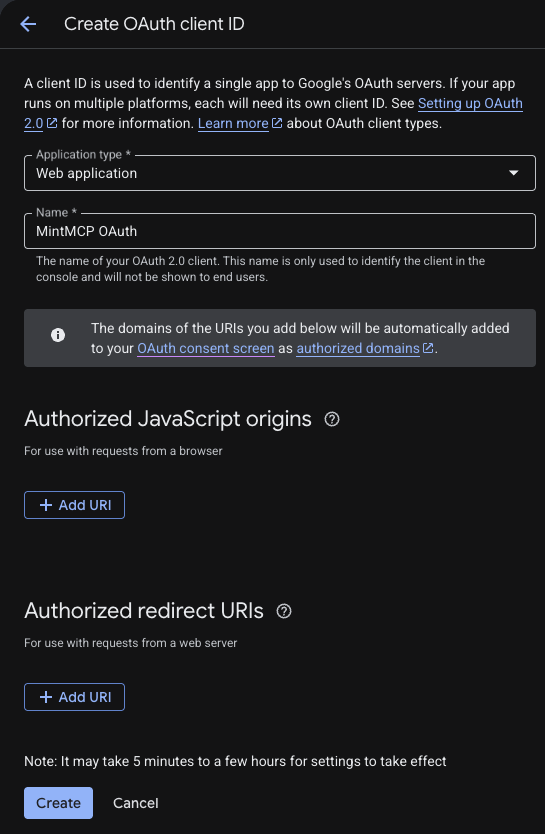
-
Under Authorized redirect URIs, click Add URI and enter the callback for your MintMCP region:
MintMCP region Redirect URI US ( app.mintmcp.com)https://app.mintmcp.com/oauth/callbackEU ( eu.mintmcp.com)https://eu.mintmcp.com/oauth/callbackThe install panel in MintMCP shows the callback for your organization.
Leave Authorized JavaScript origins empty. This URI must match the Redirect URL in the connector's OAuth settings exactly, or sign-in fails with
redirect_uri_mismatch.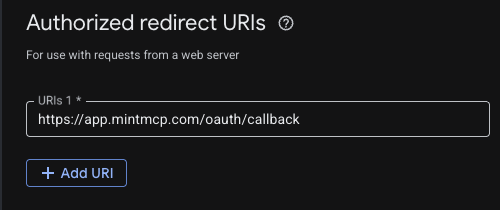
-
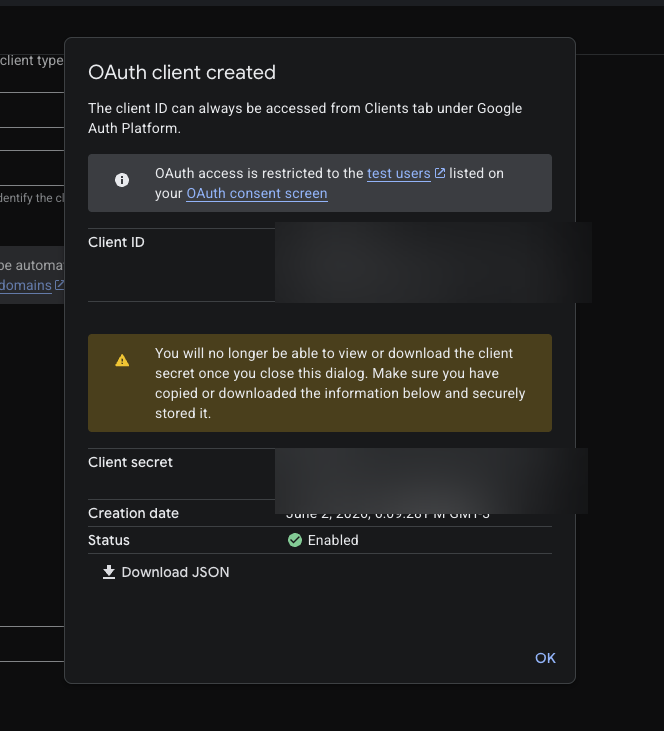
Click Create. Google shows the Client ID and Client secret once — copy both now, because you can't view the secret again after closing the dialog.
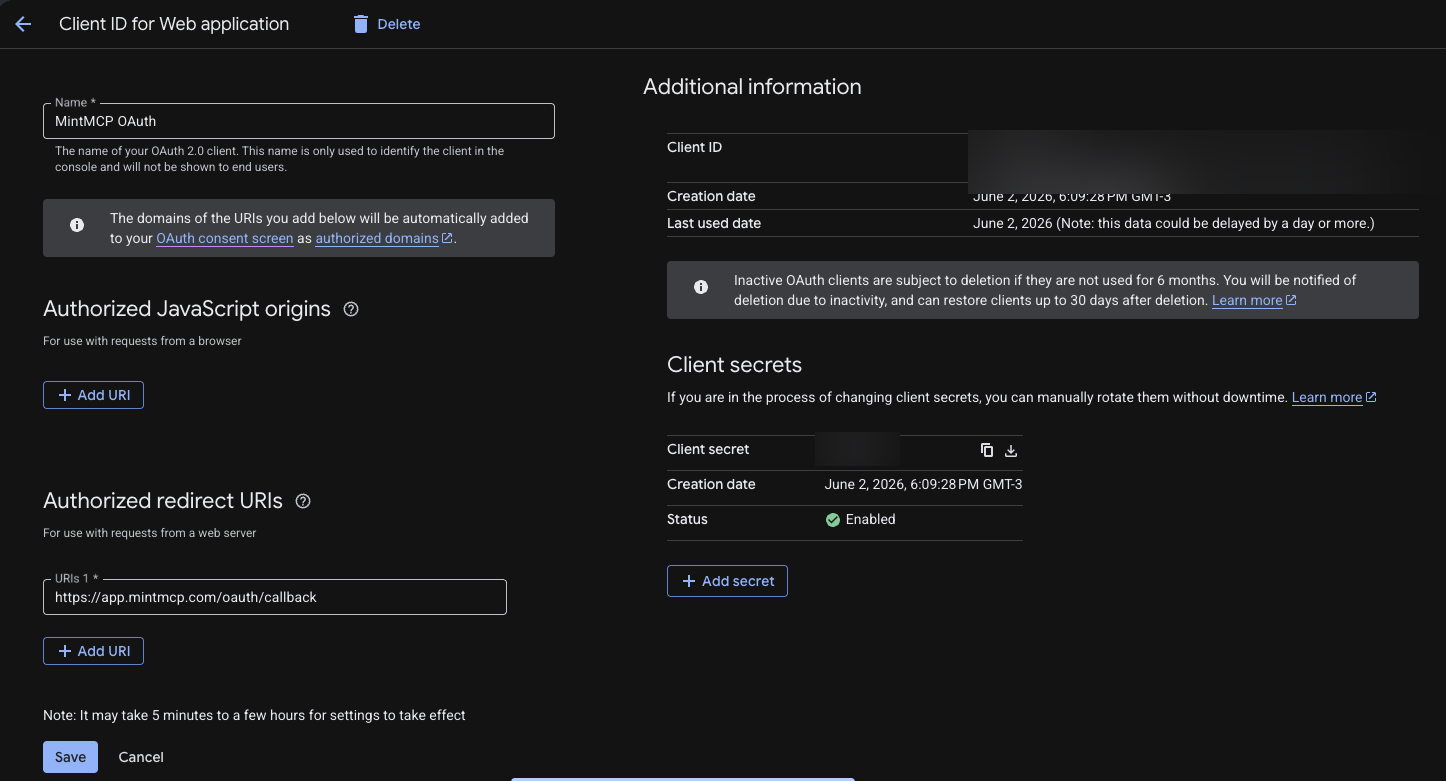
Reopen the client anytime from the Clients list to edit its redirect URIs or rotate the secret.
App verification
If you publish the OAuth app to users outside your Workspace organization, Google's verification review requires declaring the scopes it requests on the OAuth consent screen:
| Scope | Purpose |
|---|---|
https://www.googleapis.com/auth/webmasters | Search Console read and write — analytics, sitemaps, URL inspection |
https://www.googleapis.com/auth/indexing | Indexing API — submit and remove URLs |
Internal apps used only within your Workspace organization don't need verification.
Add Google Search Console to MintMCP
-
In MintMCP, go to MCP store → Manage store.
-
Find the Google Search Console connector and click to install it.
-
Open the connector's OAuth settings and enter:
Setting Value Authorization URL https://accounts.google.com/o/oauth2/v2/auth?access_type=offline&prompt=consentToken URL https://oauth2.googleapis.com/tokenScope https://www.googleapis.com/auth/webmasters https://www.googleapis.com/auth/indexingClient ID Client ID from the OAuth client you created Client Secret Client Secret from the OAuth client you created access_type=offlineis required so Google issues a refresh token. MintMCP stores it and injects a fresh access token into every request — the server never refreshes tokens itself. -
Confirm the Redirect URL shown in the connector's OAuth settings matches the URI you added to the OAuth client, which is the callback for your region (
https://app.mintmcp.com/oauth/callbackorhttps://eu.mintmcp.com/oauth/callback). They must be identical. -
Click Install.
The first time a user calls a tool, MintMCP directs them to sign in with Google and consent to the two scopes. MintMCP stores and refreshes their token automatically on every subsequent call.
Security considerations
- Each user authenticates individually through OAuth, so tool calls run against that user's own Search Console access — bounded by their existing property permissions.
- The server can read and write: alongside analytics and URL inspection, it manages sitemaps and submits indexing requests, limited to properties the signed-in user can already manage.
- Indexing is limited to the page types Google supports — the Web Search Indexing API only accepts pages with
JobPostingorBroadcastEvent(livestream) structured data, so it can't push arbitrary URLs into the index. For regular pages, rely on sitemaps and the URL Inspection tool. Google can revoke API access for use outside these cases. - The
webmastersandindexingscopes grant broad API access; what the server can actually do is bounded by its tool surface, not narrowed by the scopes.
Next steps
- Tool customization — Control which Search Console tools are exposed to users
- MCP gateway administration — Manage access and permissions